Add-Ins Overview
The Cireson Service Manager Portal Add-In feature is a location for pre-packaged solutions. Simply toggle a solution on, and it is active. Toggle any solution off if you no longer wish to use it. This approach allows for a streamlined, no-code approach to extensibility in the Cireson Service Manager Portal.
Note: For information about the Service Manager Portal Add-In feature and installation process, view the overview article here.
Dynamic Data Titles and Status Pills Download Link
The latest version 1.0.0 of this Add-In can be downloaded here.
Note: This version of the Add-In is built and tested against version 12.0.0 of the Cireson Portal. It is recommended you are using that version or higher with this Add-In
Dynamic Data Titles and Status Pills Summary
By default, the Dynamic Data forms displays "CI - DisplayName" rather than the specific class that the form represents.
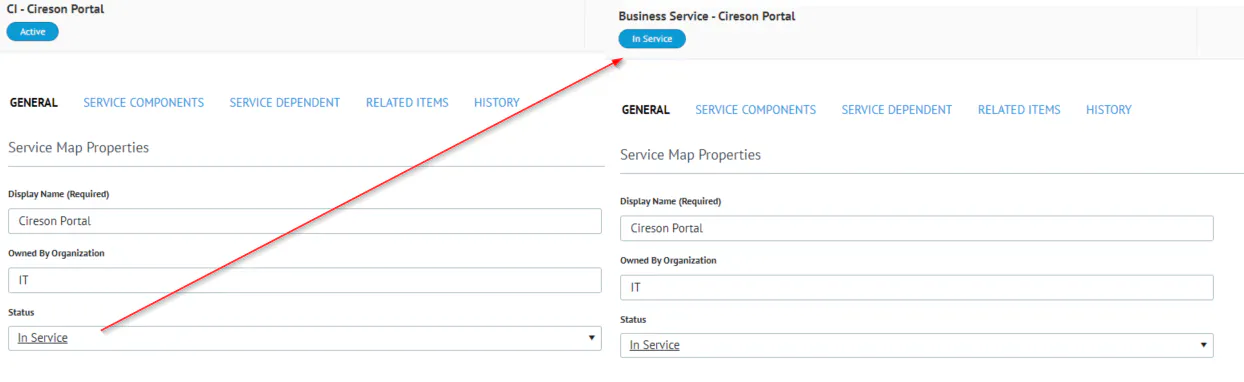
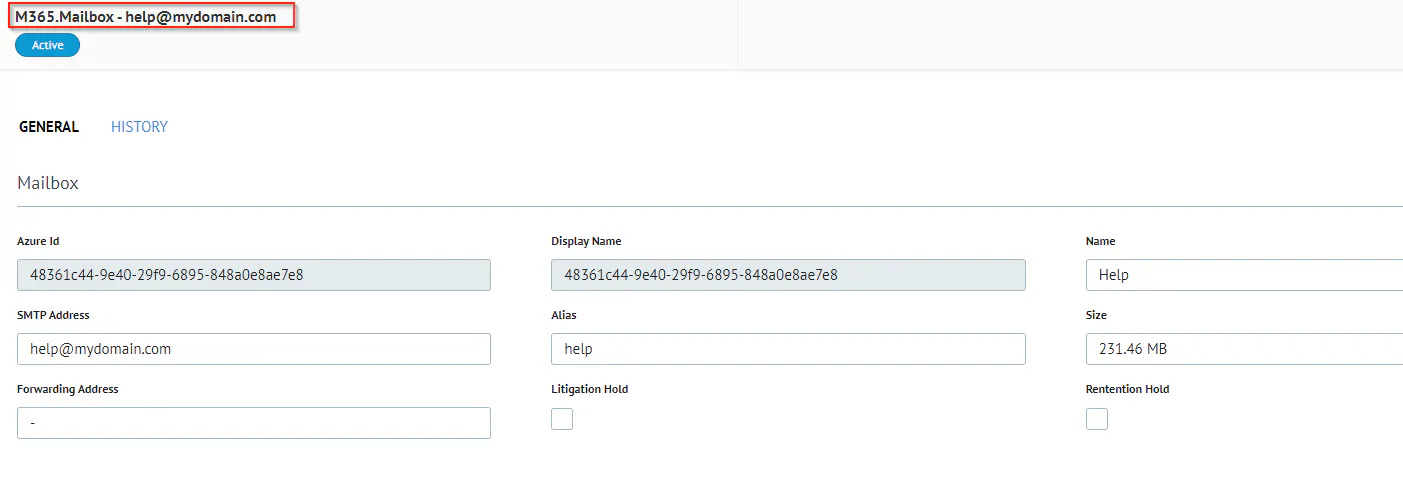
The Dynamic Data Titles and Status Pills Add-In allows for the title to reflect the class name of the record as well as a configurable Title property.
Additionally, an optional Status property can be configured for replacing the Status Pill value on Configuration Item forms. The status pill is set to 'Object Status' by default.

Each setting for the Add-In is as follows:
Key
Description
Default Value
TitleProperty
The configurable property to replace the DisplayName with
StatusProperty
The configurable property to replace the value in the Status Pill with
true
Testing and Validation
If experiencing issues, refer to KB Article 2568 here for overall Add-Ins troubleshooting steps
Run through the Add-In’s functionality with default settings.
Verify the following:
In the developer console (open up a browser > dev tools > console), you see that the Dashboard Auto Refresh Add-In is loaded
As you change settings, go through the above again with browser console open
Verify no error messages
Verify your changed settings behave as expected
Examples
This is an example of an M365 Mailbox having its title changed to the SMTP Address field.
This is an example of a Business Service reflecting the service status in the status pill