


Customers on Tikit's ITSM Plan, can optionally configure additional navigation along the left hand menu and contextual links directly alongside the Edit Ticket experience.
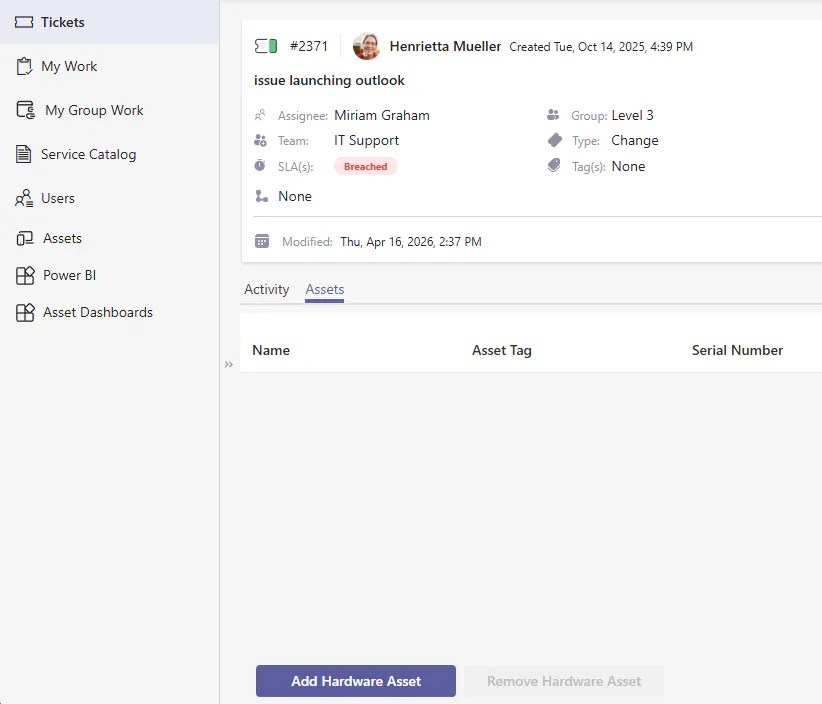
In the following screenshot custom navigation for Assets, Power BI, and Asset Dashboards have been introduced. In addition, to the right of Activity in the Edit Ticket experience Assets that are related to the ticket are also made available.
Managing with PowerShell
The following PowerShell is a series of functions that support the ability to connect to your Tikit instance, Add, Get, Update, and Remove custom navigation. Once downloaded, unzip the file and open TikitNavigation.ps1 in either PowerShell ISE or VSCode and run it by pushing the F5 key. This will load the commands into your session to work with.
Commands available:
Connect-Tikit: connects to your Tikit environment
Add-TikitCustomNode: creates a new navigation node in the Tikit Agent portal
Get-TikitCustomNode: retrieves navigation in your environment
Update-TikitCustomNode: updates navigation, can be used in conjunction with Get-TikitCustomNode
Remove-TikitCustomNode: deletes navigation
Creating new navigation nodes
In the same PowerShell session (PowerShell ISE or VS Code), create a new file to work with the following. You can create new navigation with the following commands.
Add-TikitCustomNode:
name: the name of the navigation node
itemtype: Page or Tab
defines whether the navigation that is created shows along the left hand side or within the context of a ticket
order: the order in which the navigation appears
url: the URL of the page to load, in the context of Edit Ticket you can use the following QueryStrings in the URL to pass in the ticket ID and/or Requester's Entra ID. For example, when integrating Asset Management the following URL is used.
"https://apps.powerapps.com/play/APPIDHERE?&ticketid={ticketId}&requesterid={requesterEntra}&source=website&screenColor=rgba(165,34,55,1)"
Update the values for Add-TikitCustomNode
Push F5 to run the script
Connect-Tikit -Token "tokenhere"
Add-TikitCustomNode -name "navNameHere" -itemtype "Page" -order 1 -url "websiteURLhere" -iconURL "iconURLhere"
Updating navigation nodes
In the PowerShell session that has the commands loaded, you can also perform updates to navigation. This is useful if you want to change the name, icon, or made small edits to the URL. Take the following PowerShell example of renaming the "Dashboards" navigation to "Power BI"
Connect-Tikit -Token "tokenhere"
Get-TikitCustomNode | where-object {$_.Name -eq "Dashboards" -and $_.ItemType -eq "Page"} | Update-TikitCustomNode -Name "Power BI"
First we connect to Tikit, get all of our navigation, filter for one where the name is "Dashboards" and is of ItemType "page", and finally update it to be called "Power BI". This can be extended further, for example rename the dashboard and the order it appears in on the left.
Connect-Tikit -Token "tokenhere"
Get-TikitCustomNode | where-object {$_.Name -eq "Dashboards" -and $_.ItemType -eq "Page"} | Update-TikitCustomNode -Name "Power BI" -order 3
Removing navigation nodes
We can also remove navigation similar to how we update navigation. Instead of Update-TikitCustomNode, we'll use Remove-TikitCustomNode. In this case, we first retrieve all navigation, filter for a single navigation node called "Dashboards" that is of ItemType "Page" and then finally, remove it.
Connect-Tikit -Token "tokenhere"
Get-TikitCustomNode | where-object {$_.Name -eq "Dashboards" -and $_.ItemType -eq "Page"} | Remove-TikitCustomNode