In the default setup for Tikit's OpenAI integration, the File Upload (preview) method is a one time upload. To update (add/remove) documentation, you need to re-run through the process. As long as you've setup the OpenAI integration, you can modify where documents are retrieved from and in turn, schedule re-training on that location.
Setup Blob Storage Training Schedules in Azure Foundry Portal
Navigate to the Azure Foundry Portal.
If you performed a one time file upload and are coming back to set this up after having closed the Foundry Portal page/browser you had open - click on "Add your Data"
If you're immediately following up from a One Time file upload, you should see the following in the Add your Data area. Click on "Remove data source"

Confirm this by clicking on "Continue"
NOTE: You're only removing your data from the current Chat Studio session. Any documentation you have previously uploaded still remains in your Azure Blob Storage container.

Then click on "Add your Data"

In the “Add data” menu:
– Select data source: Azure Blob Storage
– Subscription: Choose your Azure subscription
– Select Azure Blog storage resource: Select the Azure Blob Storage account you used in the previous section
- Select storage container: Choose the container you used in the previous section
- If you did not change this value in the Deploy to Azure section, the name should be "tvaopenaifiles"
– Select Azure AI Search resource: Select the Azure AI Search resource you used in the previous section
- Index name: tikitopenaisearch
- If you chose to call this something else in the previous section use that here. If you receive a warning that the index already exists, that is to be expected and can be ignored as the index will be rebuilt using existing data
- Indexer Schedule: Choose hourly
Then click "Next"

In menu for Data Management, choose the following and click next.

In Data connection choose the following and then click next.

Finally, click on "Save and close"

At this point, the Azure Search Service will re-index uploaded documentation for Open AI hourly. Additional documentation can be uploaded directly to the Azure Blob Storage account and the Azure Search Service's indexing schedules can be modified in the Azure Portal.
Modifying Documentation in Azure Blob Storage

Navigate to the Azure Blob Storage Account used to deploy OpenAI
Expand "Data Storage"
Click on "Containers"
Click on the Container used in previous steps/sections that contains the documentation you've uploaded.

It's here that you can add or remove documentation through the Azure Portal.
Changing Azure Search Service Indexer Schedules
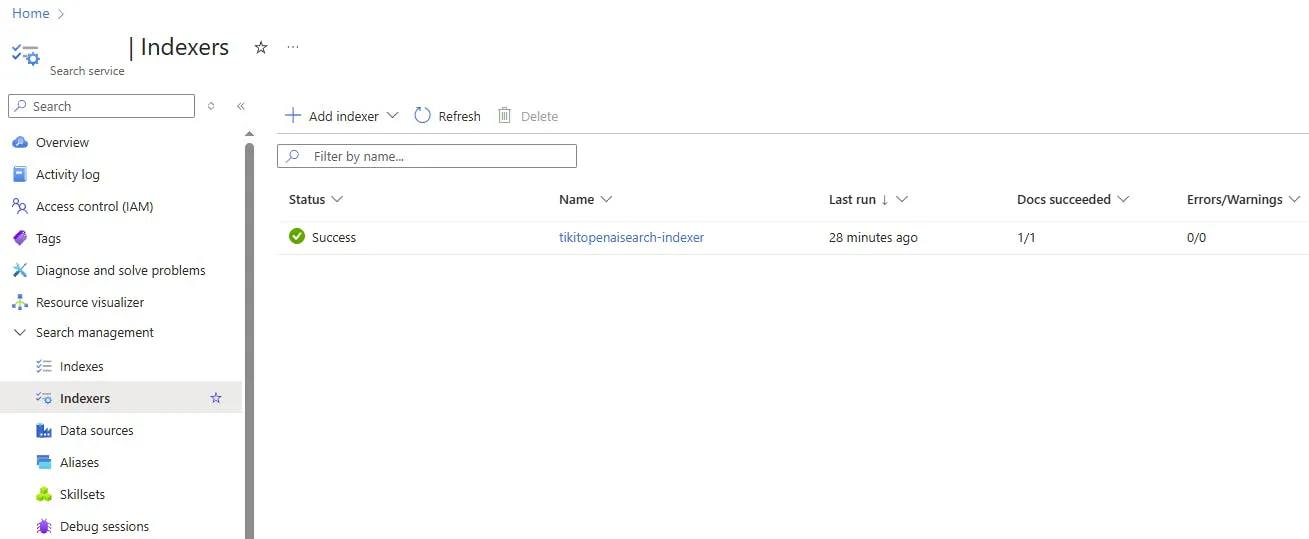
Navigate to the Azure Search Service used to deploy OpenAI
Expand "Search Management"
Click on "Indexers"
Here you should see the indexer that trains against Azure Blob Storage. Click it.
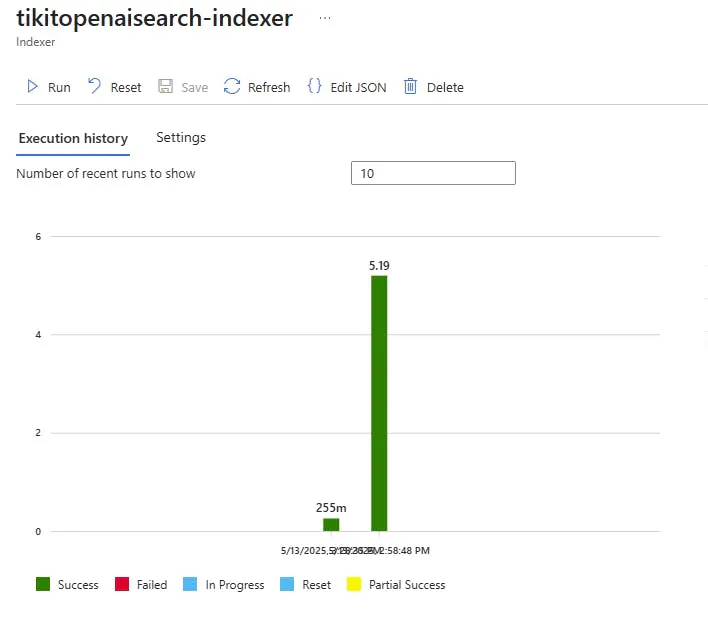
Then click on "Settings"
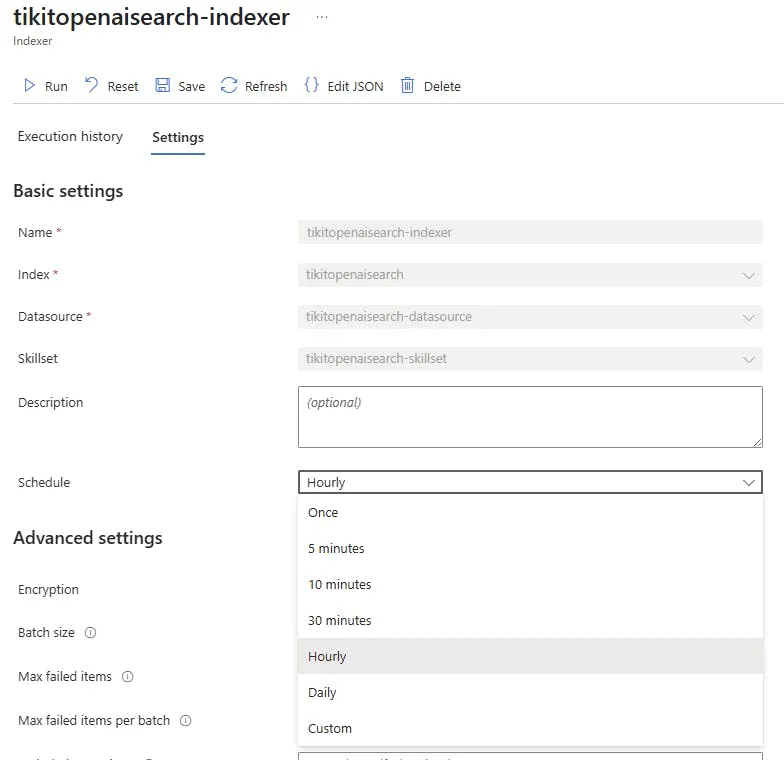
Here you can modify how often the schedule that runs training (indexing) against your Azure Blob Storage account.
Using Power Automate to upload to Azure Blob Storage
Instead of navigating into the Azure Portal, you could also automate the uploading of documentation from multiple sources into Azure Blob Storage using a simple Power Automate Flow. To get started, navigate to the Power Automate portal.
When a File is Created on SharePoint, Upload to Azure Blob Storage
In a similar fashion, you could also upload from SharePoint using a SharePoint Trigger and Action.
Select your chosen Site and Library

Choose the SharePoint site again, and get the file content using the Id from the Trigger
Finally, upload to Azure Blob Storage
- Blob name: File name with extension
- Blob content: File Content


When a File is Created on OneDrive for Business, Upload to Azure Blob Storage
Take the following example wherein anytime a file is created/added to a folder called "OpenAIUpload"
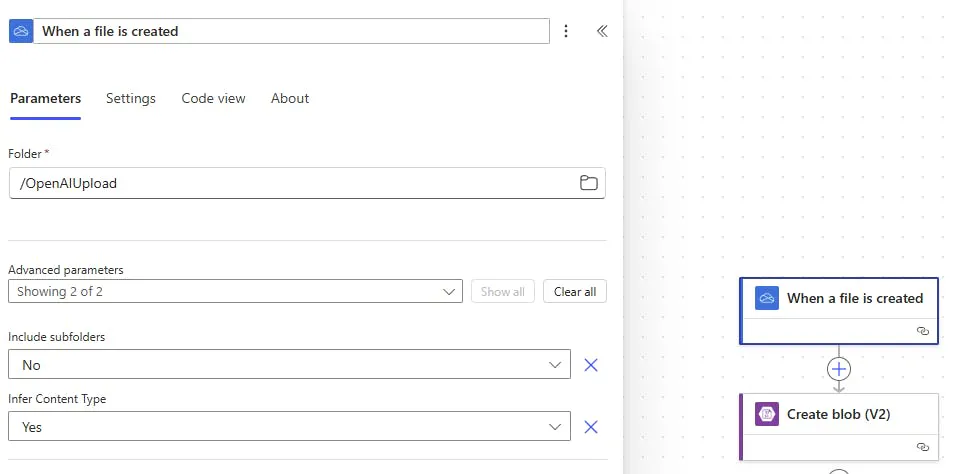
The document is uploaded to the same Azure Blob Storage Container that Azure Search Service/OpenAI are both looking at as seen in previous sections. To enumerate the available folders (containers), type or paste in the name of your Azure Storage Account.
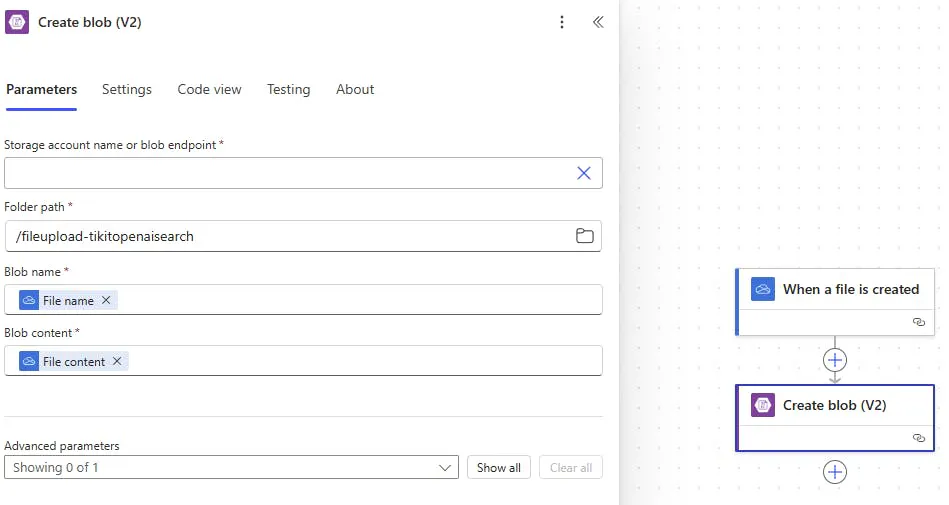
Blob name: From the OneDrive trigger, this is the name of the file to be uploaded
Blob content: From the OneDrive trigger, this is contents of the file to be uploaded
Configure the Azure Blob Storage connection for use in Power Automate
Regardless of the source of the file, you'll need to setup the Create Blob action that allows you to push the file into Blob Storage. To do this, add the "Create Blob (v2) Action into your flow and choose Access Key Authentication.
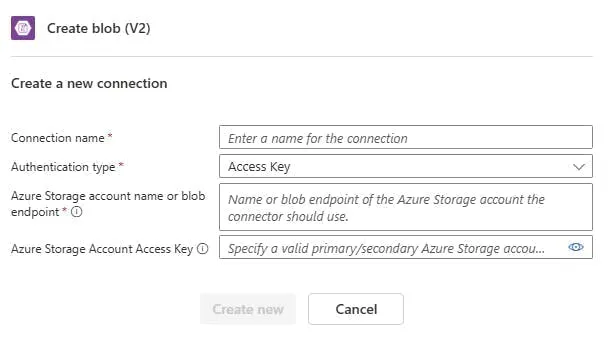
Connection Name: A generic name to refer to this connection and blob storage container. For example "OpenAI Tikit Upload"
Authentication Type: Access Key
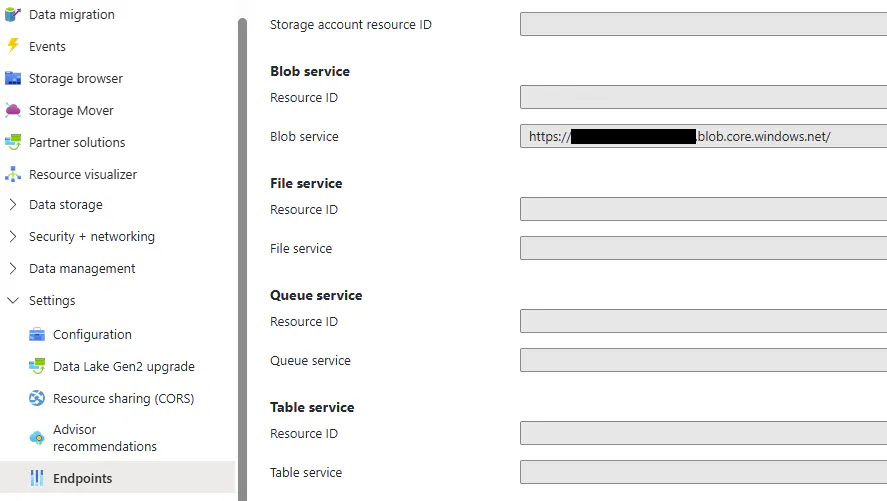
Azure Storage account name or blob endpoint: This URL can be obtained from the Azure Blob Storage resource by navigating to:
- Settings -> Endpoints -> Blob service -> Blob service
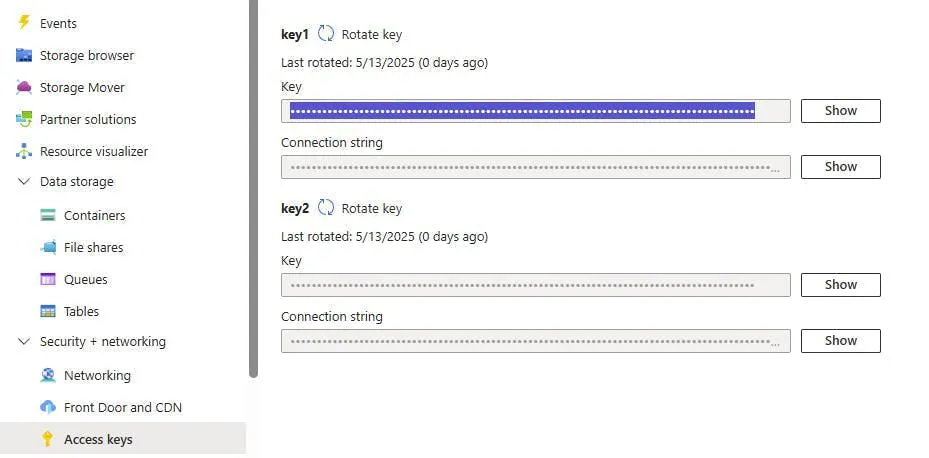
Azure Storage Account Access Key: This key can be obtained from the Azure Blob Storage resource by navigating to:
- Security + networking -> Access keys