


In this article we will run through the steps to setup, customize and deploy Tikit Virtual Agent.
Looking for more details on setting up and configuring Tikit? Check out the Tikit Setup Series – Video Guide.
In this article:
How to publish Tikit Virtual Agent to organization app store
To make the Tikit Virtual Agent app available to users from your Teams app store, you will allow and unblock the Tikit Virtual Agent app. After allowing TVA to your organization’s app store, you can deploy Tikit Virtual Agent to your users, pin it in their MS Teams toolbar and even customize TVA. We’ve detailed the steps below.
Unblock Tikit Virtual Agent within Manage apps
You will first need to verify if Tikit Virtual Agent is Unblocked within Teams Admin Center – Teams apps – Manage apps:
Open Microsoft Teams Admin Center
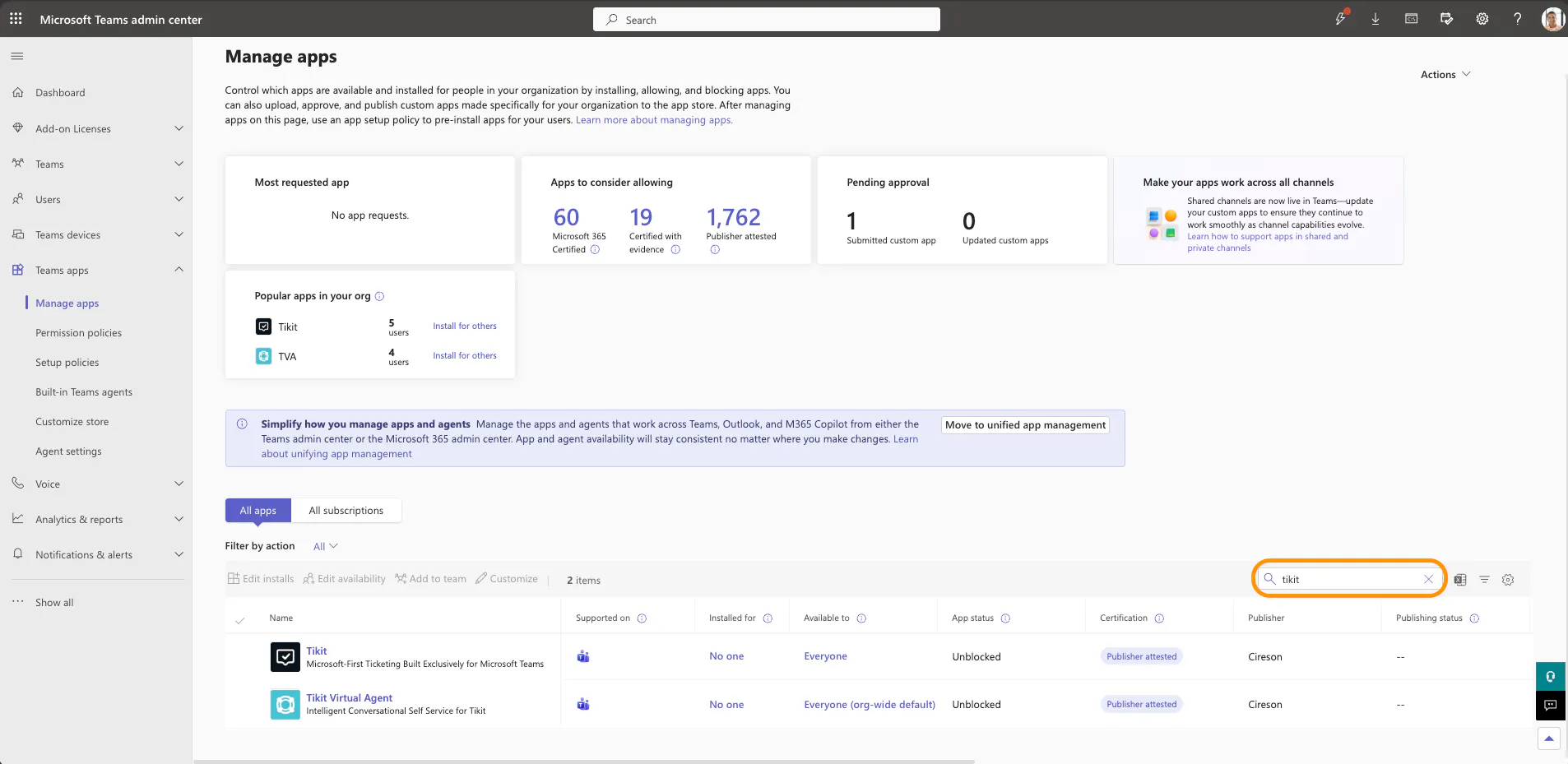
Navigate to Teams apps –> Manage apps
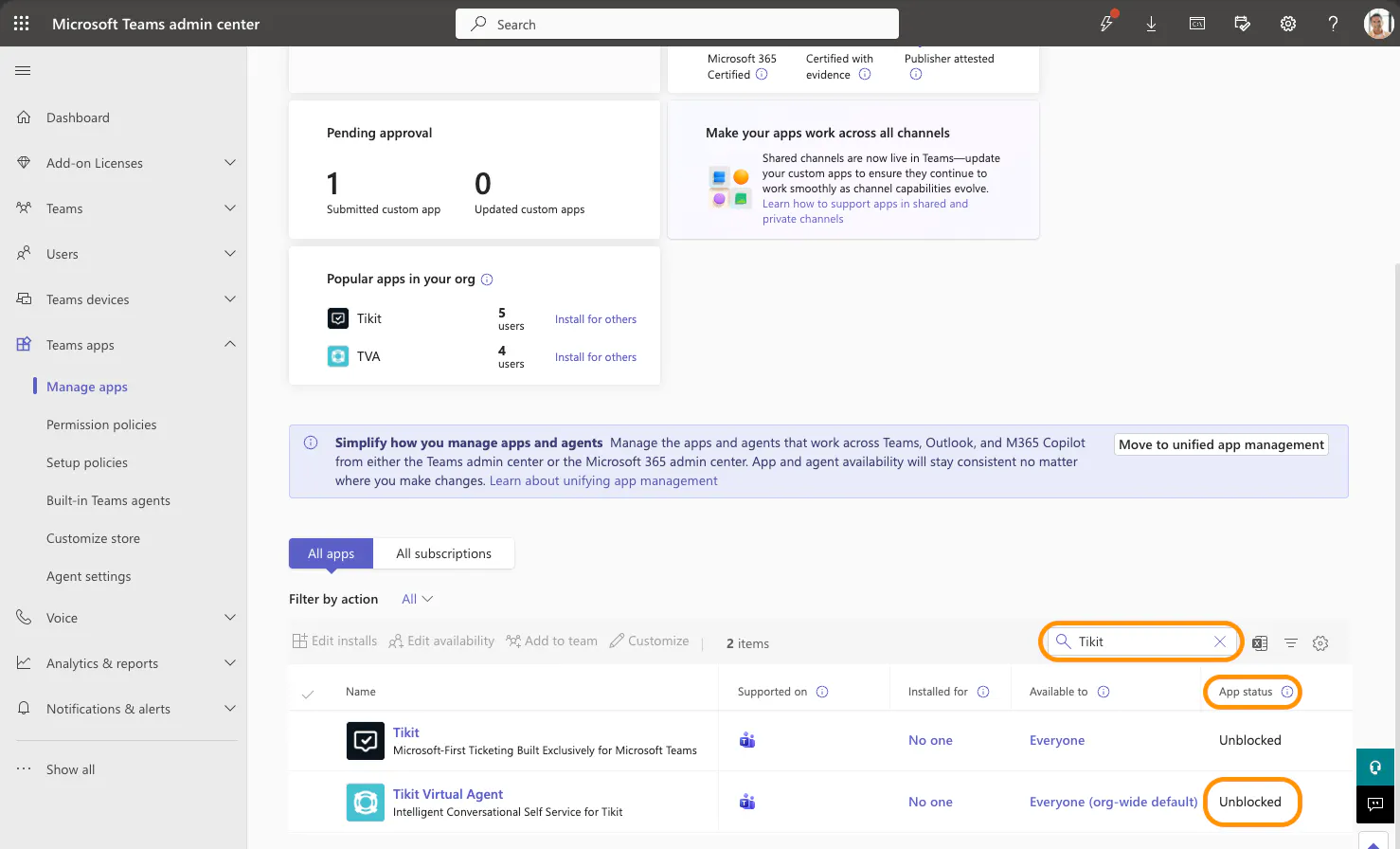
Search for Tikit Virtual Agent and verify the App status is Unblocked
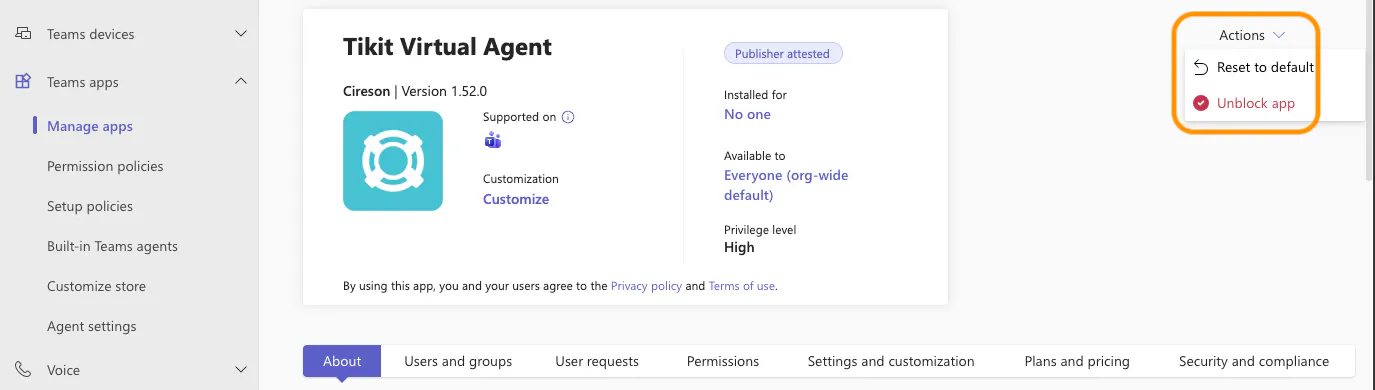
If Tikit Virtual Agent App status is set to Blocked, select Tikit Virtual Agent, then click on the Actions menu and select Unblock app to allow Tikit Virtual Agent in your environment
Please note that this process could take anywhere from 15 mins – 4 hours to full propagate in your Microsoft 365 environment.
Make Tikit Virtual Agent available within Manage apps
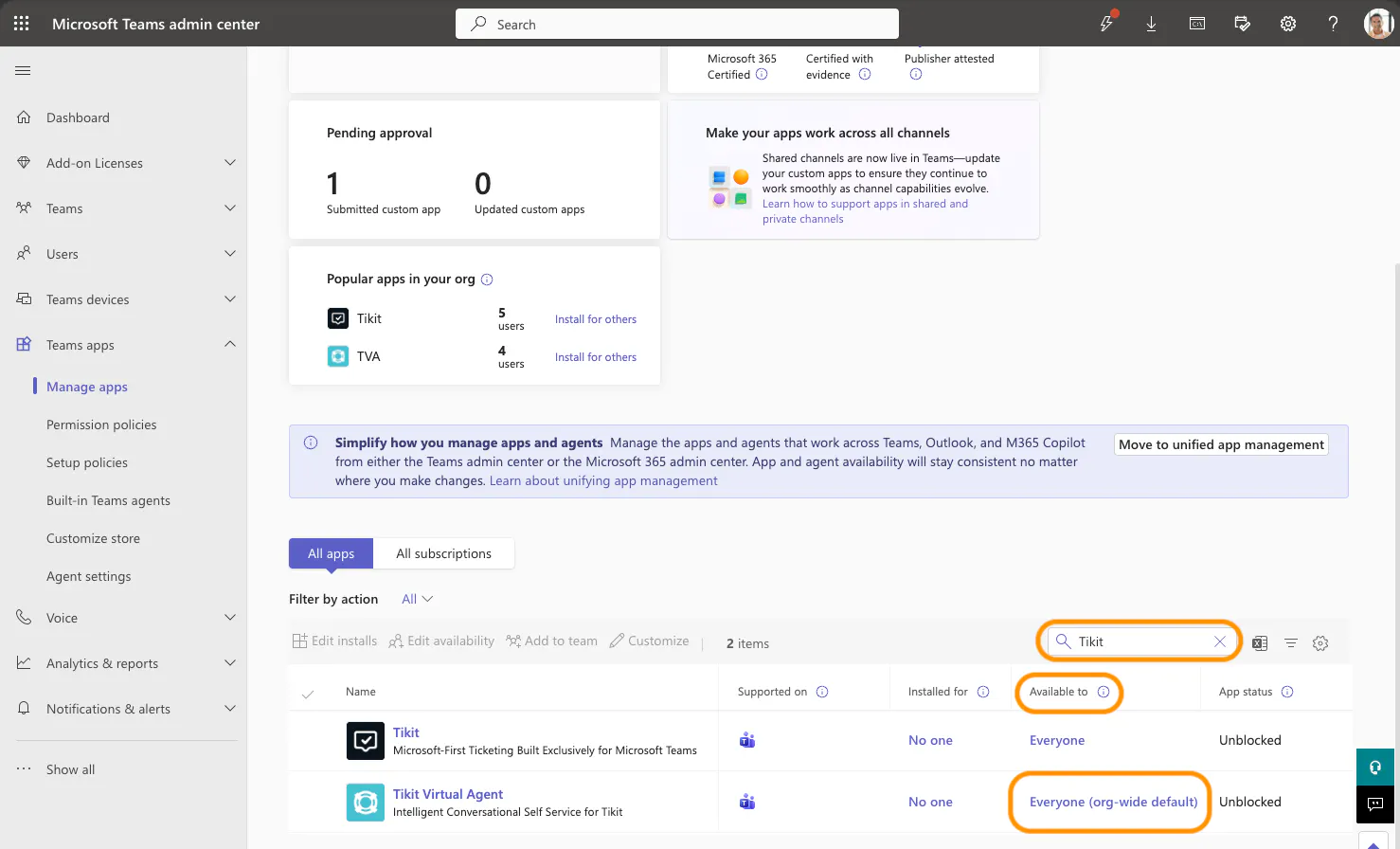
You will then need to verify that the Tikit Virtual Agent is set to Everyone under "Available to" so TVA may be accessed by users:
Open Microsoft Teams Admin Center
Navigate to Teams apps -> Manage apps
Search for Tikit Virtual Agent and verify Available to is set to Everyone
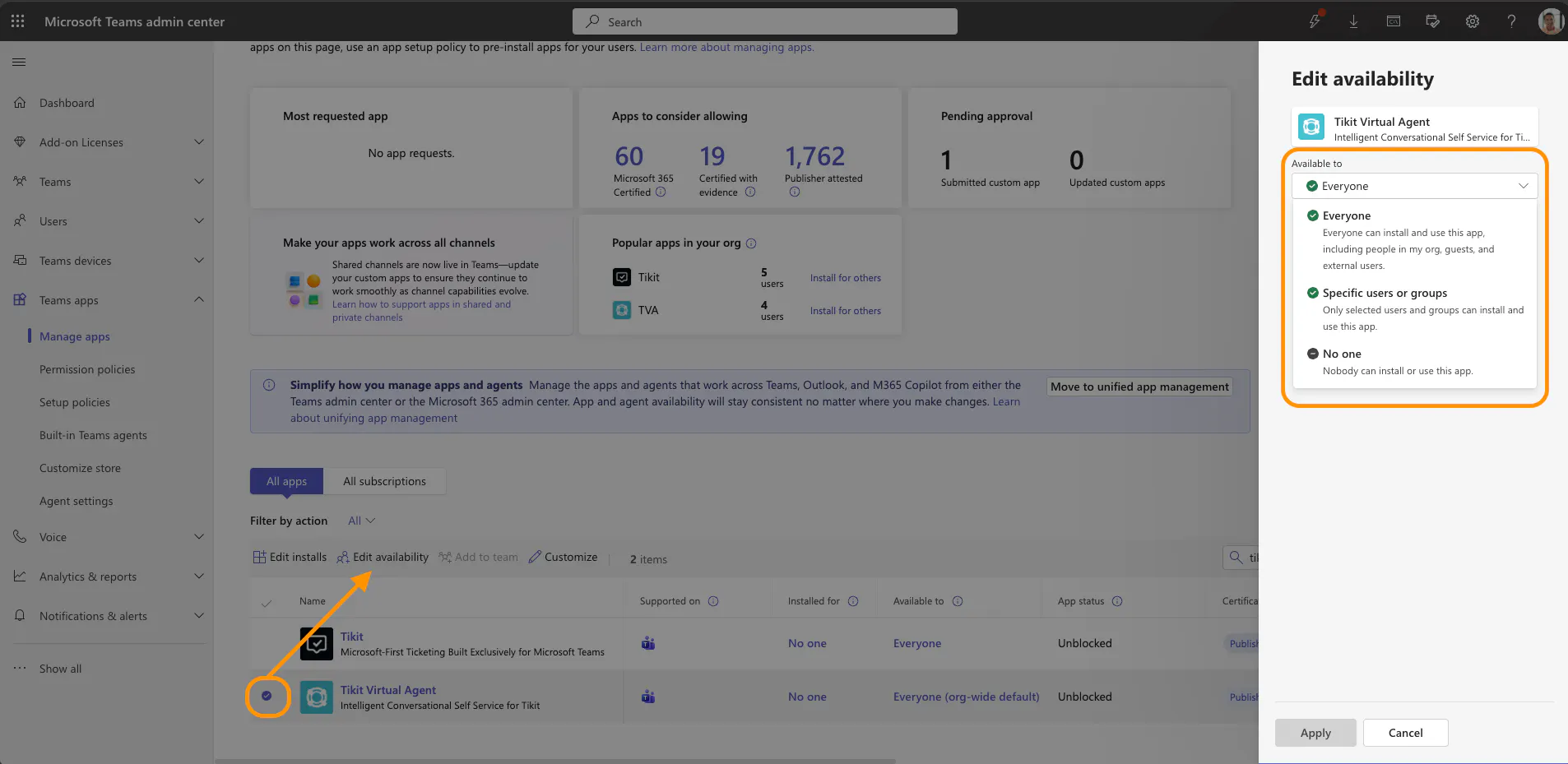
If Available to is set to No one, select Tikit Virtual Agent and then click on Edit availability. Select Everyone or Specific users or groups (end users that will be using Tikit Virtual Agent) to allow the appropriate access to Tikit Virtual Agent in your environment.
If Available to is set to Specific users or groups, ensure that these are the appropriate users or groups (end users that will be using Tikit Virtual Agent) that need access to Tikit Virtual Agent. If needed, you can update those users or groups in this Edit availability settings menu.
Please note that this process could take anywhere from 15 mins – 4 hours to full propagate in your Microsoft 365 environment.
Install and Pin Tikit Virtual Agent for Users
Users who have permissions to Tikit Virtual Agent can find it in your Team’s app store. To make it easy for users to get the app, you can deploy Tikit Virtual Agent to all users and pin the app to the app bar in Teams. To do this, we will add Tikit Virtual Agent to the Global (Org-wide default) setup policy.
Deploy Tikit Virtual Agent within Manage apps
Open Microsoft Teams Admin Center
Navigate to Teams apps -> Manage apps
Search for Tikit Virtual Agent
Select Tikit Virtual Agent and then click on Edit installs. Select Everyone or Specific users or groups (end users that will be using Tikit Virtual Agent) to deploy Tikit Virtual Agent in your environment.
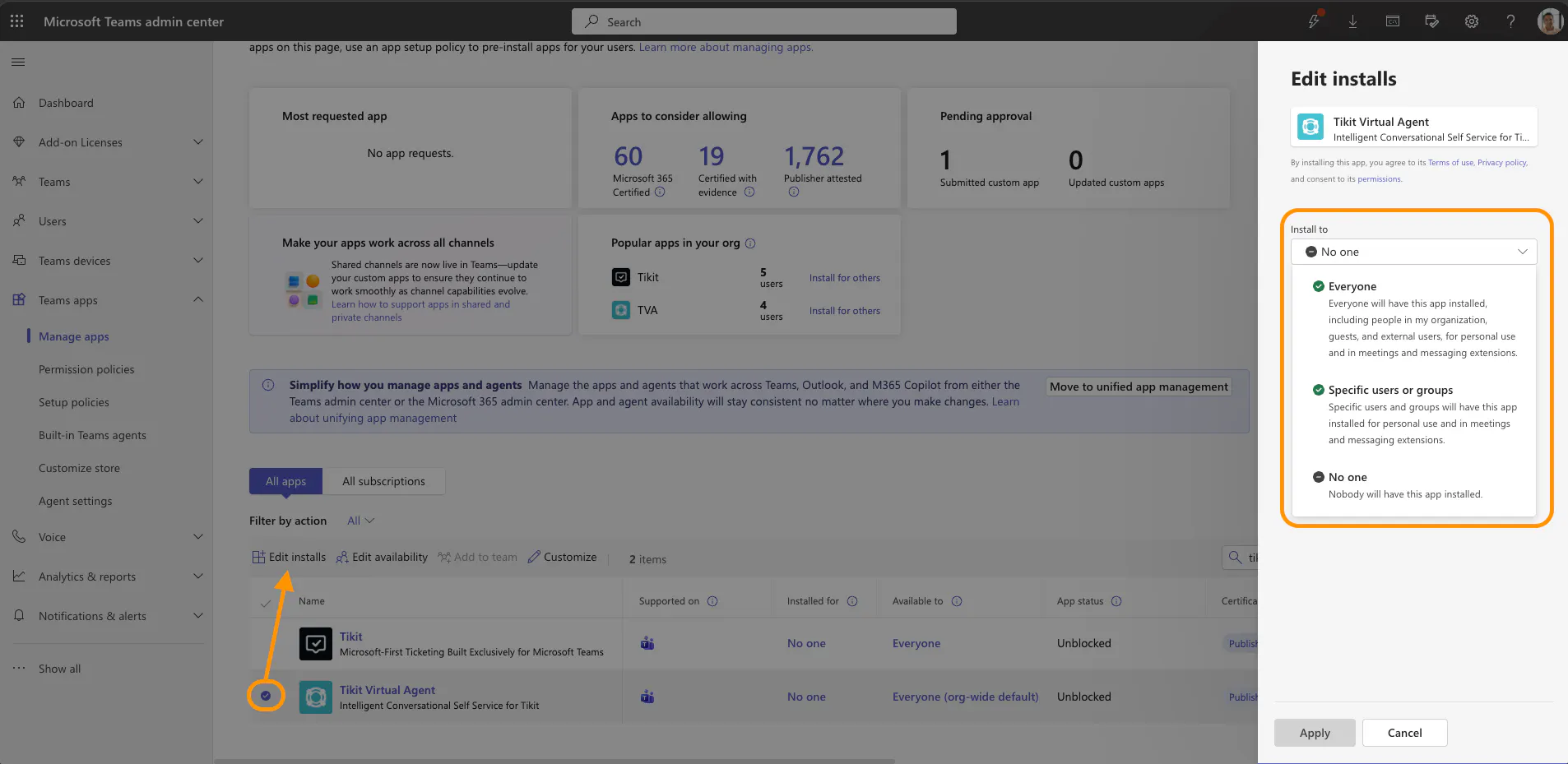
It may take ~24 hours for Tikit Virtual Agent to deploy across your business and be updated within everyone’s Microsoft Teams experience.
Pin TVA in Setup policies
Sign in to the Microsoft Teams admin center.
In the left navigation, go to Teams apps > Setup policies
Select Global (Org-wide default)
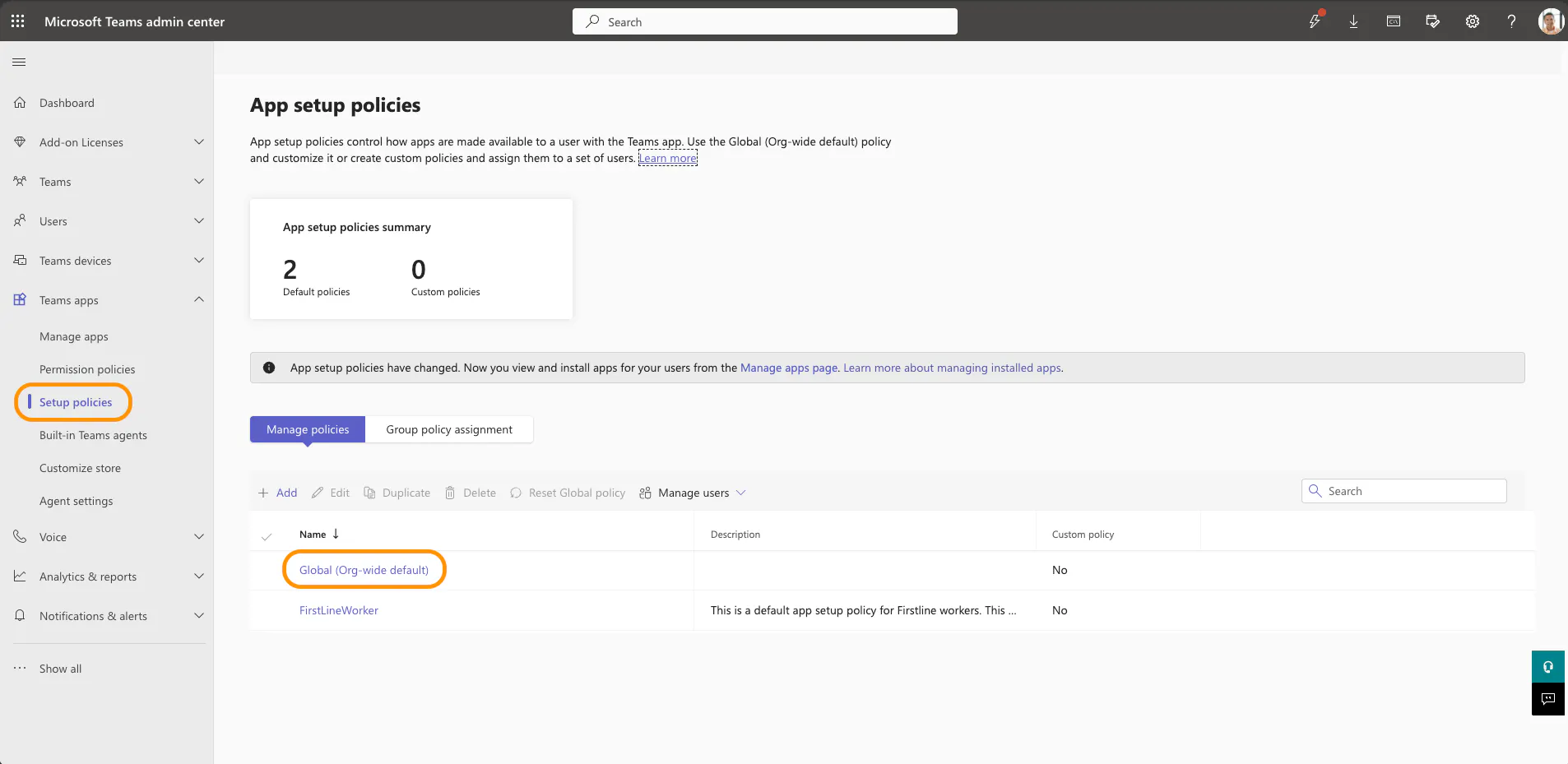
To pin Tikit Virtual Agent:
Under Pinned apps, click Add apps.
In the Add pinned apps pane, search for Tikit Virtual Agent, click Select then Add
Arrange the apps in the order you want them to appear in Teams, then click Save
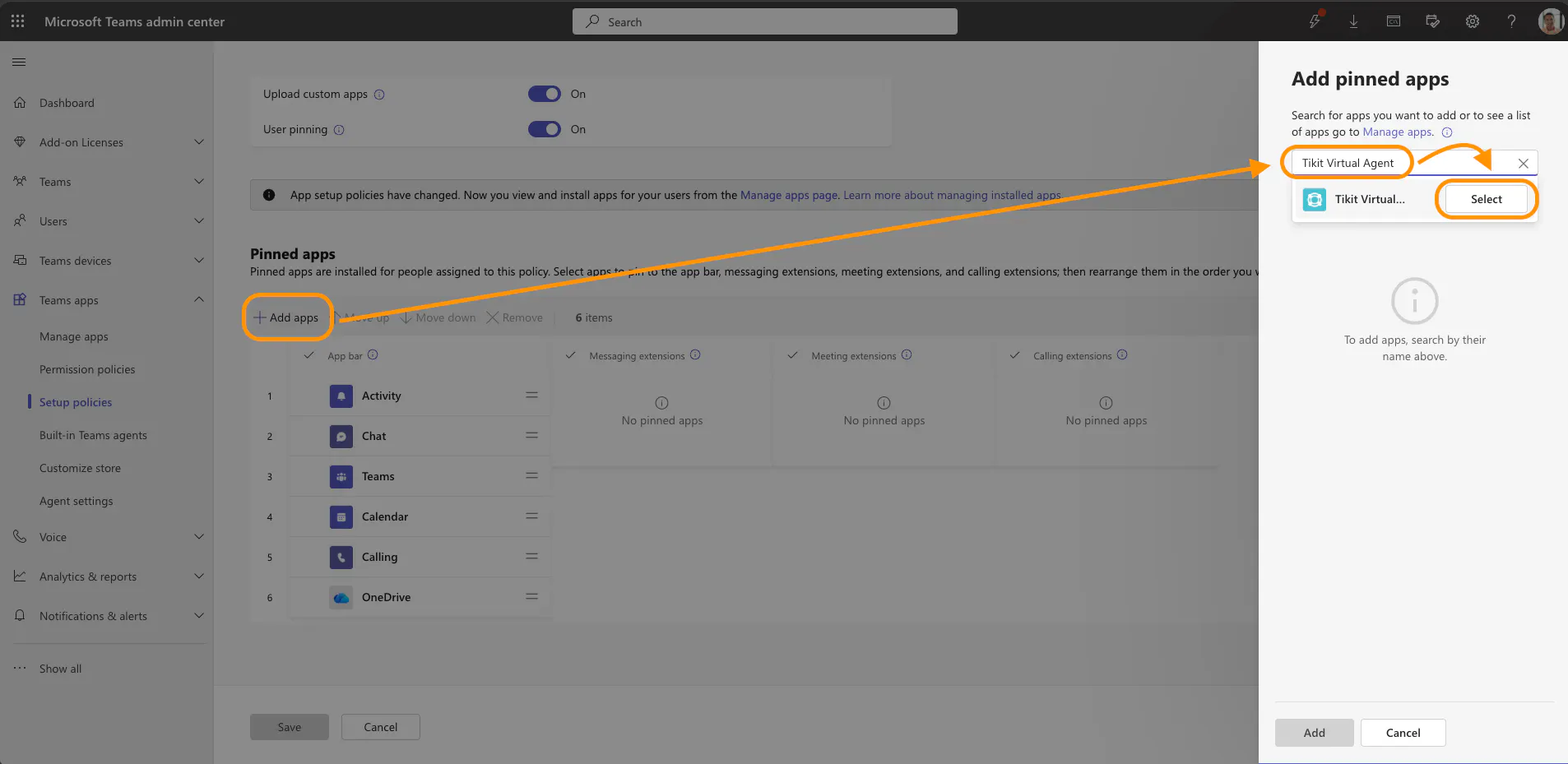
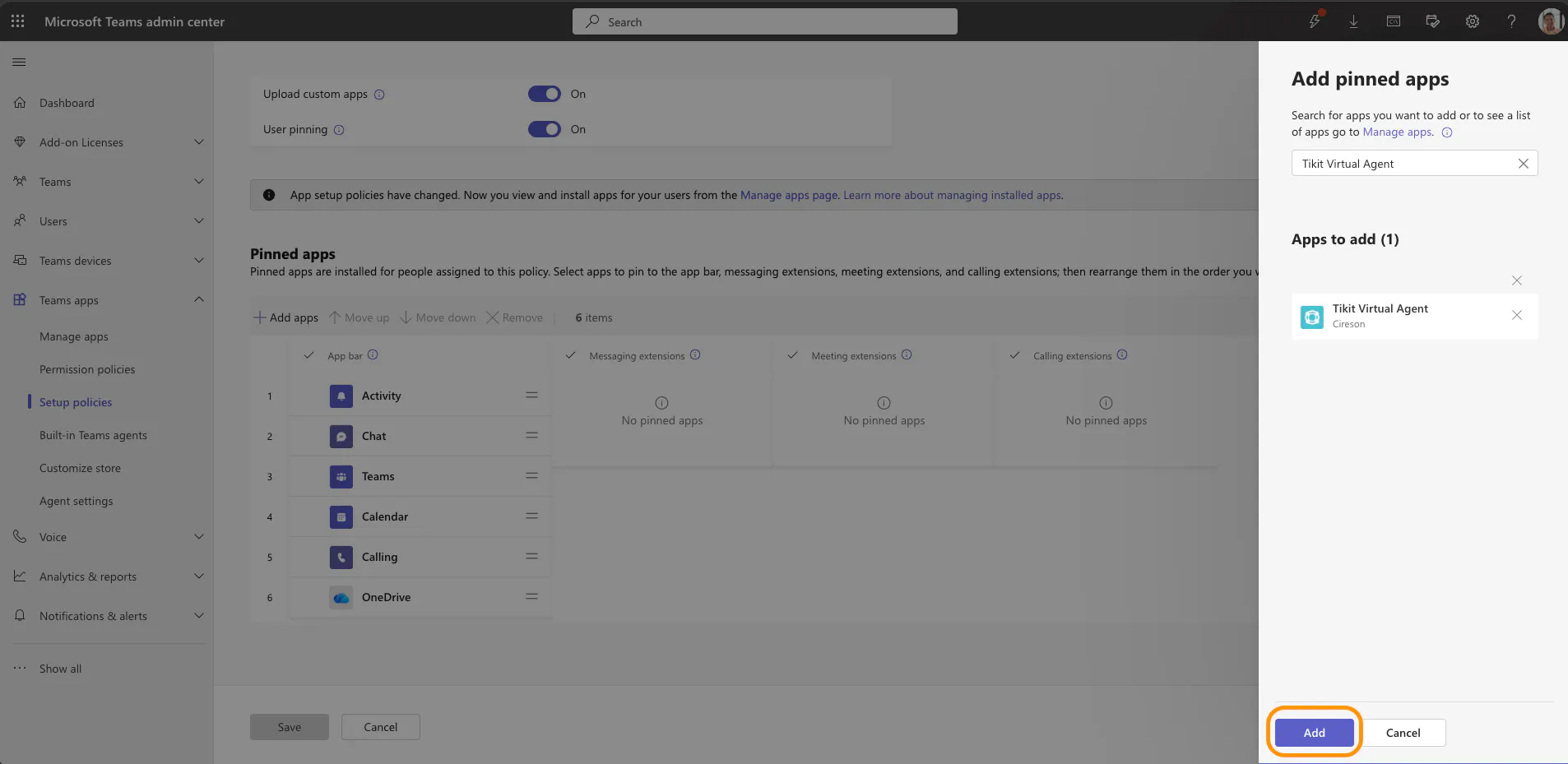
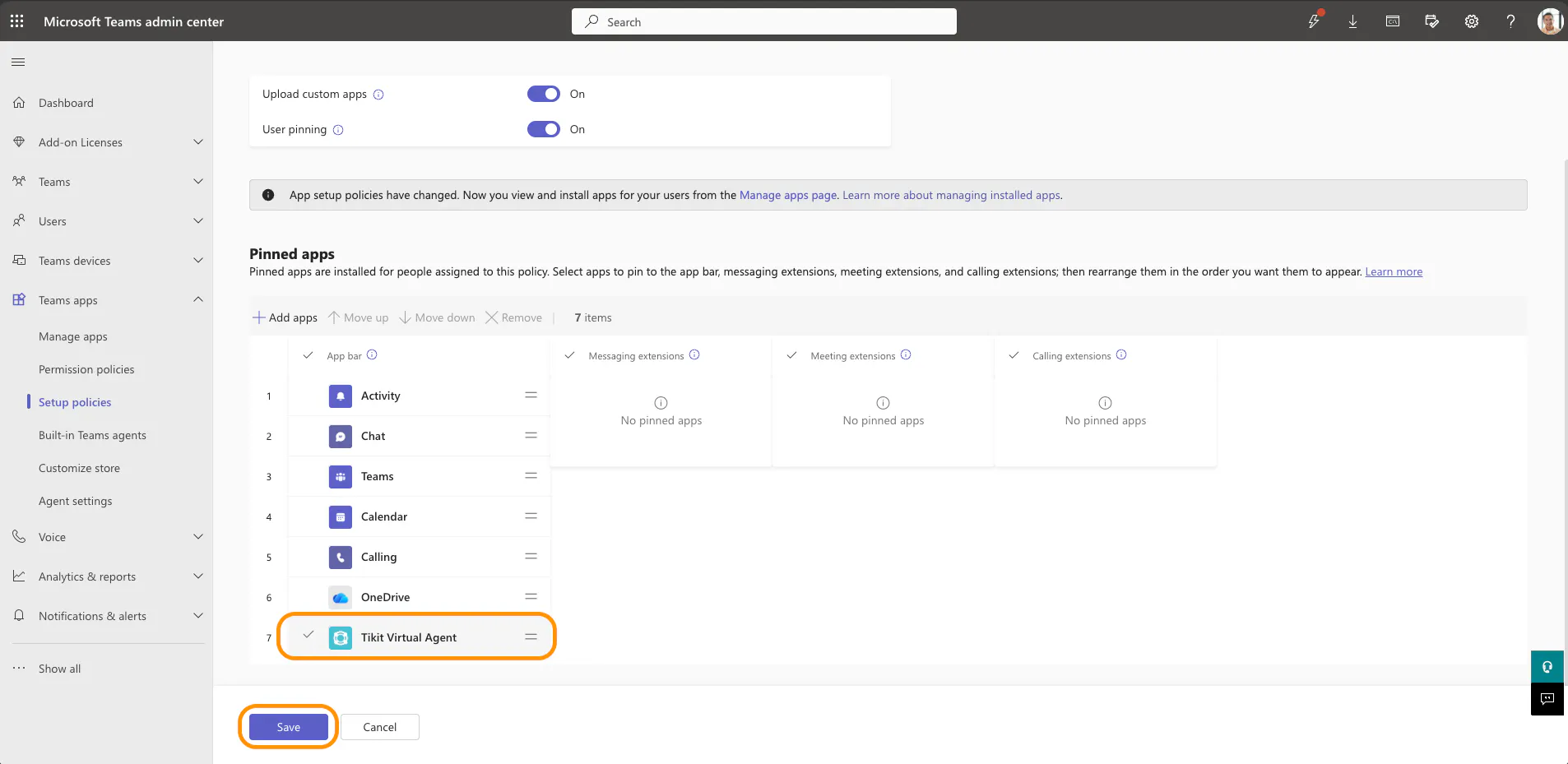
It may take ~24 hours for Tikit Virtual Agent to deploy across your business and be updated within everyone’s Microsoft Teams experience.
Customize Tikit Virtual Agent
Admins have the ability to customize the Tikit Virtual Agent app to adhere to an organization’s branding. You may refer to Customize appearance of apps in your organization’s Teams store to review the details of which properties you can customize.
Sign in to the Microsoft Teams admin center.
In the left navigation, go to Teams apps > Manage apps.
Search for and select Tikit Virtual Agent from the list
In the Tikit Virtual Agent manage app page, click on Customize under Customization to the right of the teal Tikit Virtual Agent logo.
In the Customize pane, change the details as needed
When you’re finished with changes, click Apply.
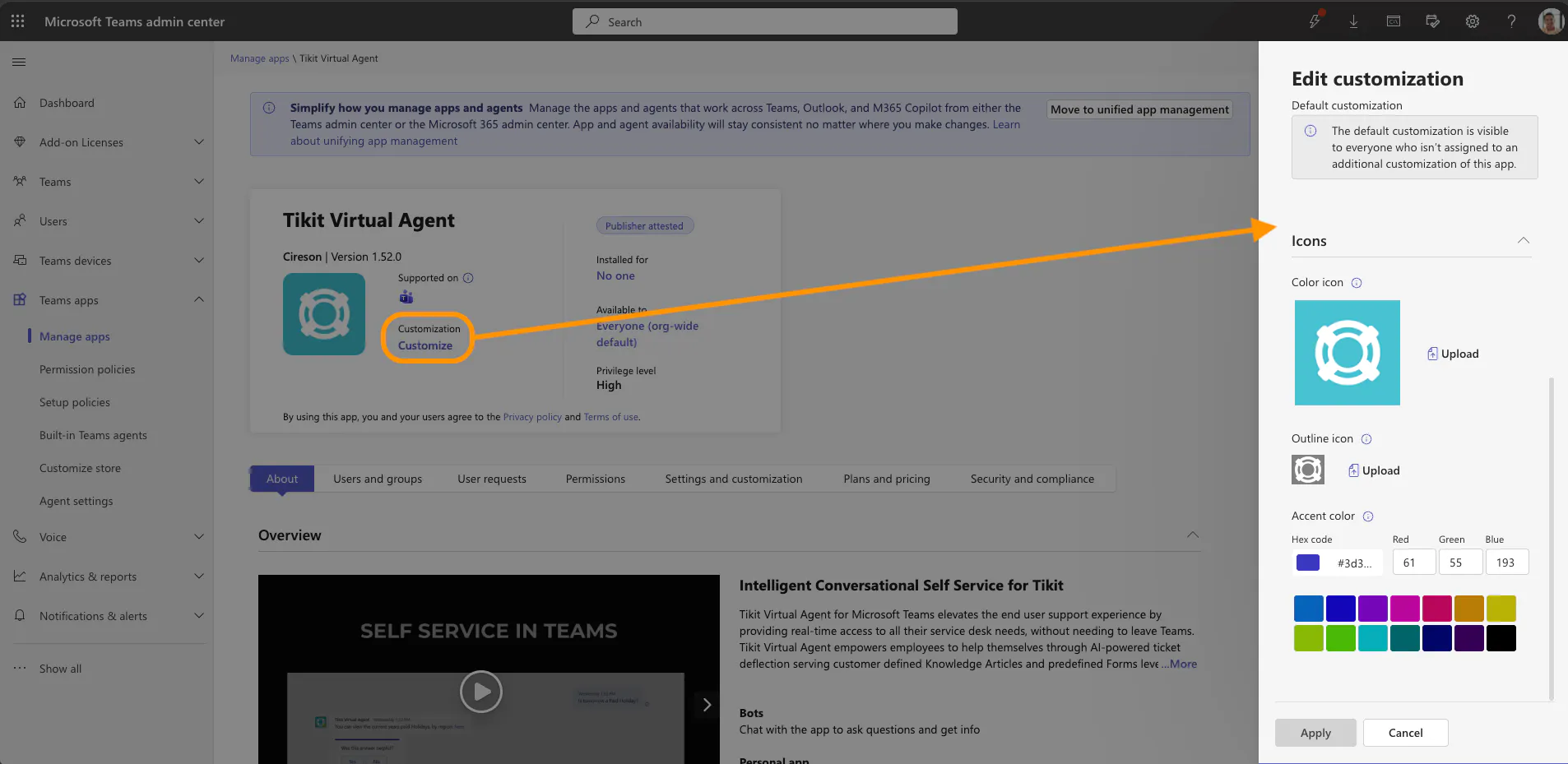
It may take ~24 hours for the modified branding to be updated across everyone’s Microsoft Teams experience.