


Custom Properties offer you the ability to introduce any number of properties into your core ticketing experience that is seen through the web, Teams, Power Automate, Tikit Automations/SLAs, Forms, and reporting such as Power BI/Excel.
In this article:
Creating a Custom Property
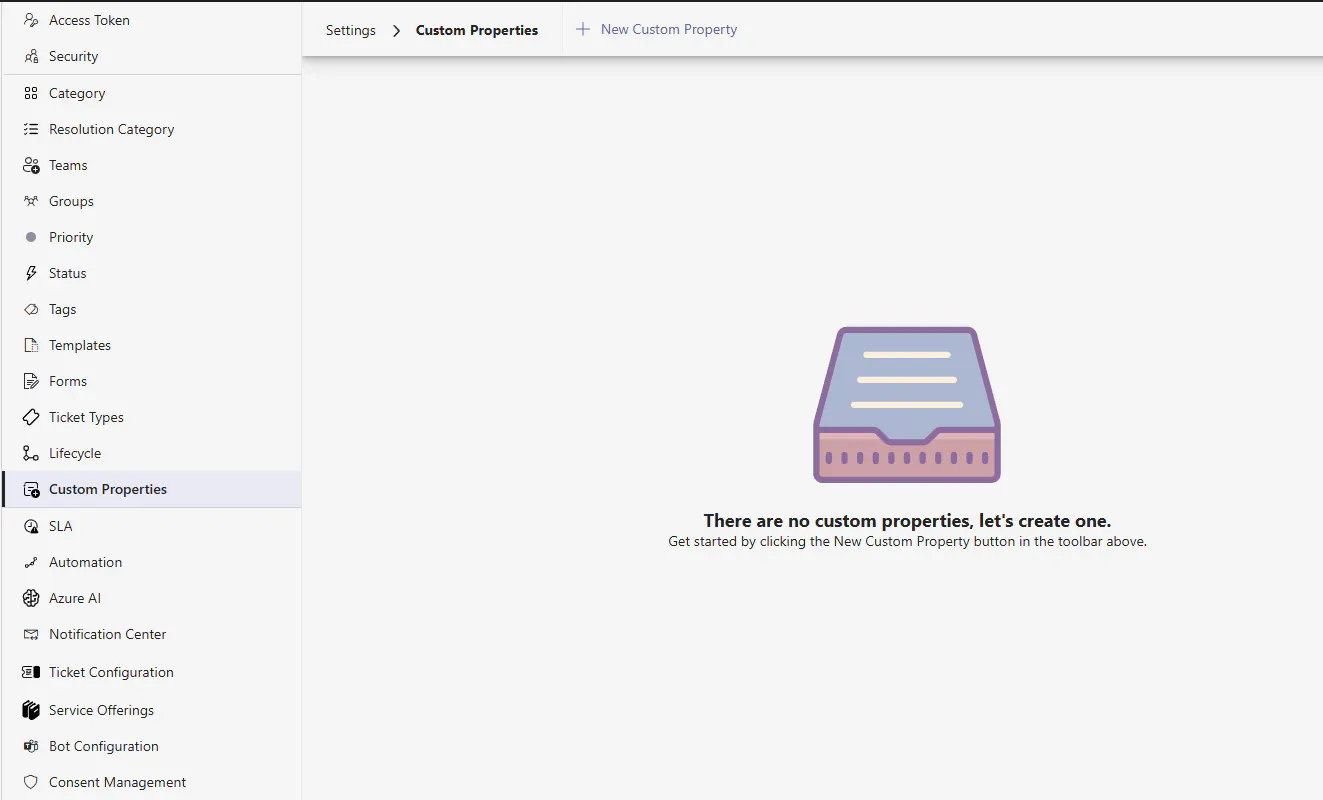
Navigate to https://web.tikit.ai/settings/custom-properties or "Custom Properties" within the Settings on the Agent portal as a Super Agent or Administrator.
Click "+ New Custom Property" at the top
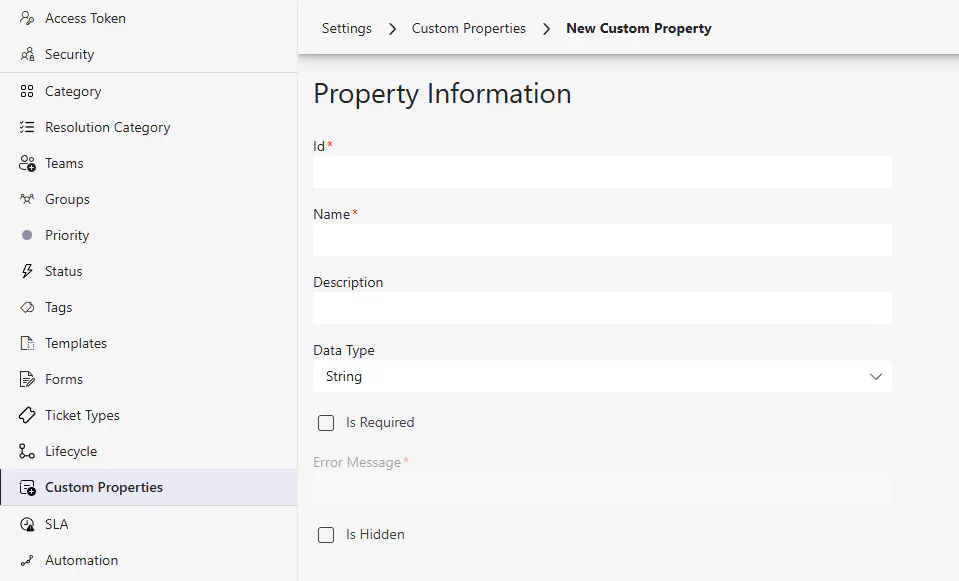
Defining a new Custom Property requires a few items:
Id: This property must have a unique identifier amongst all other properties. This is important as it can be used to identify the property in Tikit Automation, Tikit SLAs, Form(s), Power Automate, and Power BI/Excel reporting.
Once it is set, it cannot be changed
Name: This is what you and members of your organization will see when interacting with the property.
This is a field that can be changed later
Description: A way to define the purpose of the field and how its used
This is a field that can be changed later
Data Type: What kind of data will be stored by this property - String, Number, True/False, List, Date or Time. More on this in the next section.
Once it is set, it cannot be changed
Is Required: When this is checked, users must fill the field out to save the ticket.
This is a field that can be changed later
Error Message: The message to return to the user when the field is not filled out
Is Hidden: When a property is hidden, the value can only be controlled via Tikit's API. This is useful for storing unique values from other systems such as syncing monitoring alerts, security event IDs, CRM records, and more.
Data Types
When creating Custom Properties, how the data will be stored and used matters. You can choose from the following options:
String: Best for plain text, phone numbers, and email addresses.
Number: Good for things such as quantity, or where math might be involved such as adding or subtracting
True/False: This is a true/false value. Good for checkboxes, and building dependent logic such as "If true, then do X" for example in Multi-Turn Cards
List: Good if you have a finite dataset and are looking to avoid free text input (string) so as to make automation scenarios easier to work with
Teams Presentation
List: When clicked in Teams, the user sees every option that exists in the list (minus Archived items)
Lookup: When clicked in Teams, the user must type to search options that exist in the list (minus Archived items)
Date: Used to store a date value such as March 6th, 2026
Time: Used to store a time value such as 12:37 pm
Re-Ordering
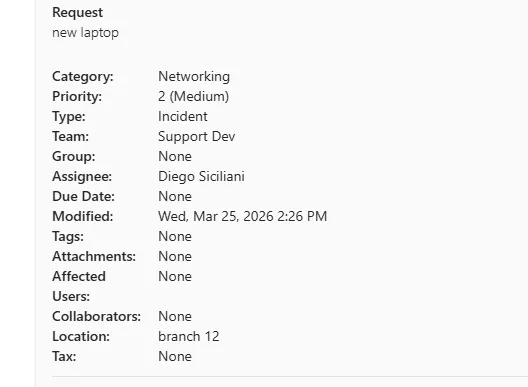
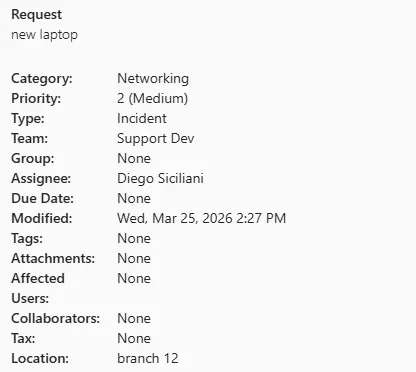
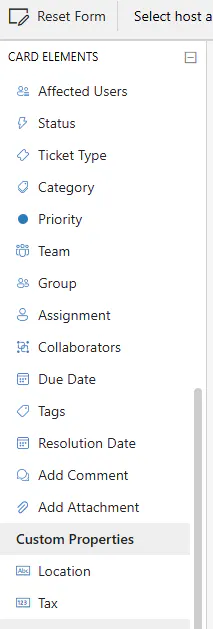
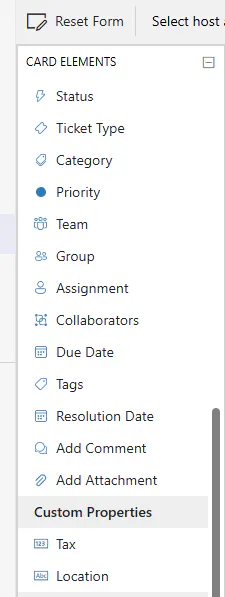
When you have two or more Custom Properties, how they appear in Web and Teams can be adjusted based on how they are ordered within the Custom Properties setting.

This change impacts the order in which properties appear in:
Ticket Properties along the right hand side while editing a ticket in the Agent Portal
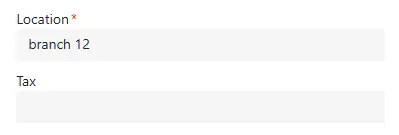
Location is before Tax
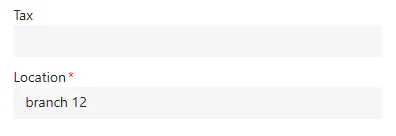
Tax is before Location
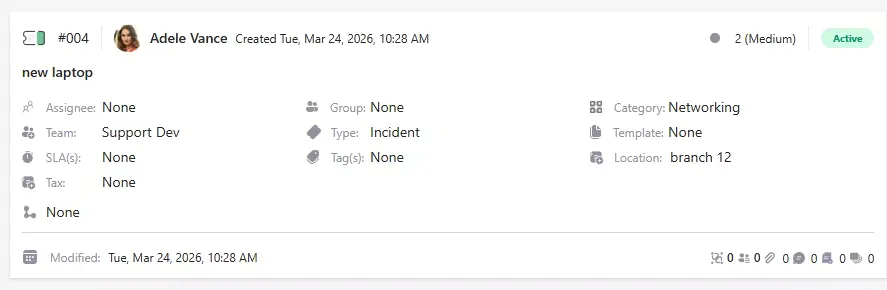
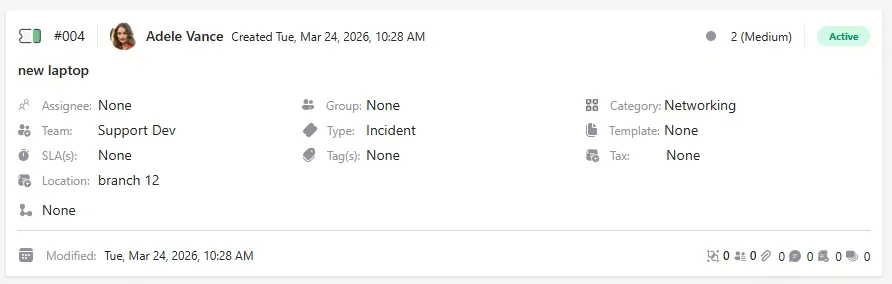
The Ticket Preview Card along the top center while editing a ticket in the Agent Portal
Location is before Tax
Tax is before Location
Teams Cards
Location is before Tax
Location is after Tax
Form Designer
Location is before Tax
Tax is before Location
Using Custom Properties
When working with Power Apps, Power Automate, Power BI or Excel, Custom Properties can be retrieved directly from a Ticket on the CustomPropertiesAnswerJson field.
Power BI/Excel
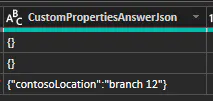
The CustomPropertiesAnswerJson field stores the answers to Custom Properties and their values (if any) for a given ticket as a JSON payload that can be parsed for automation or expanded for reporting. Given the example used above, we can see a couple of tickets were created before this property was created and after it was created.
Tikit SLAs
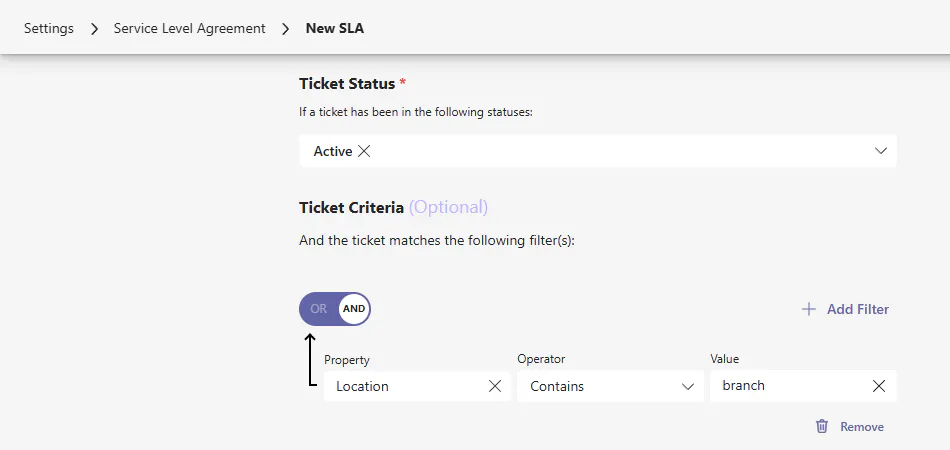
Properties created can also be leveraged as criteria within SLAs, Their functionality is based on their data type. Take the following example where the Location Field created above contains the word "branch"
Tikit Automation
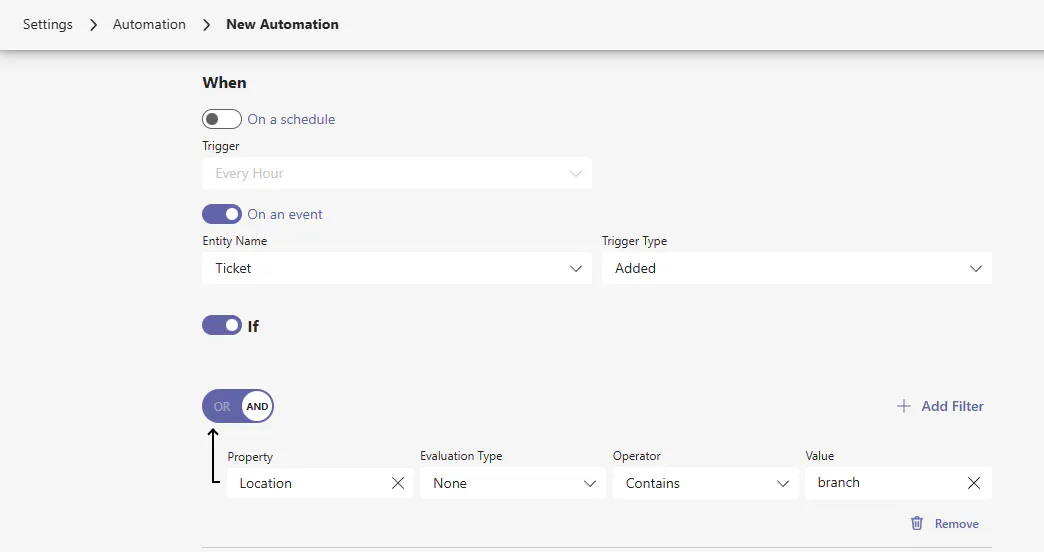
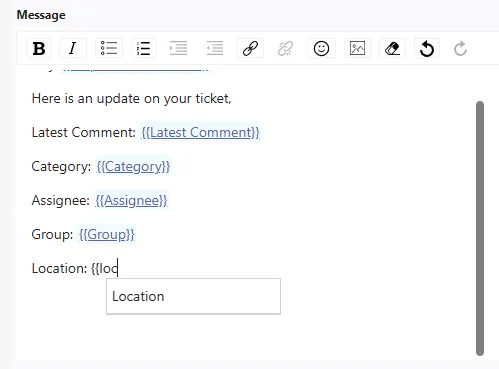
Properties created can also be leveraged within criteria for Automation and variables in Notification Center
Forms
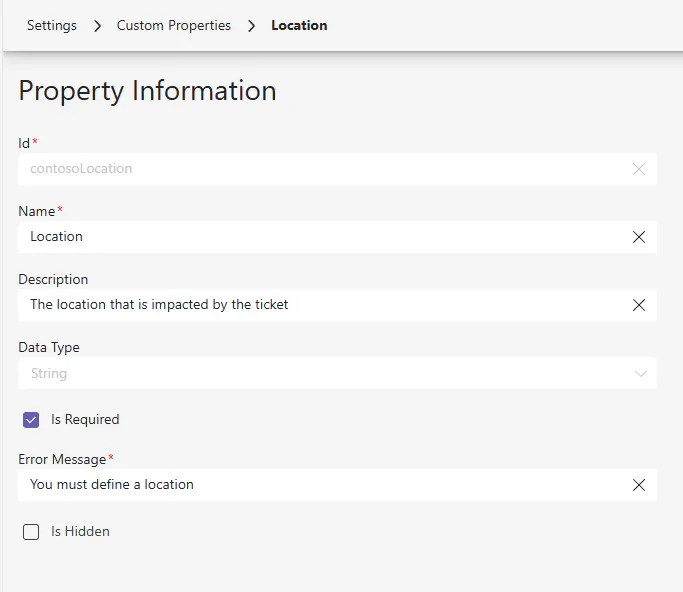
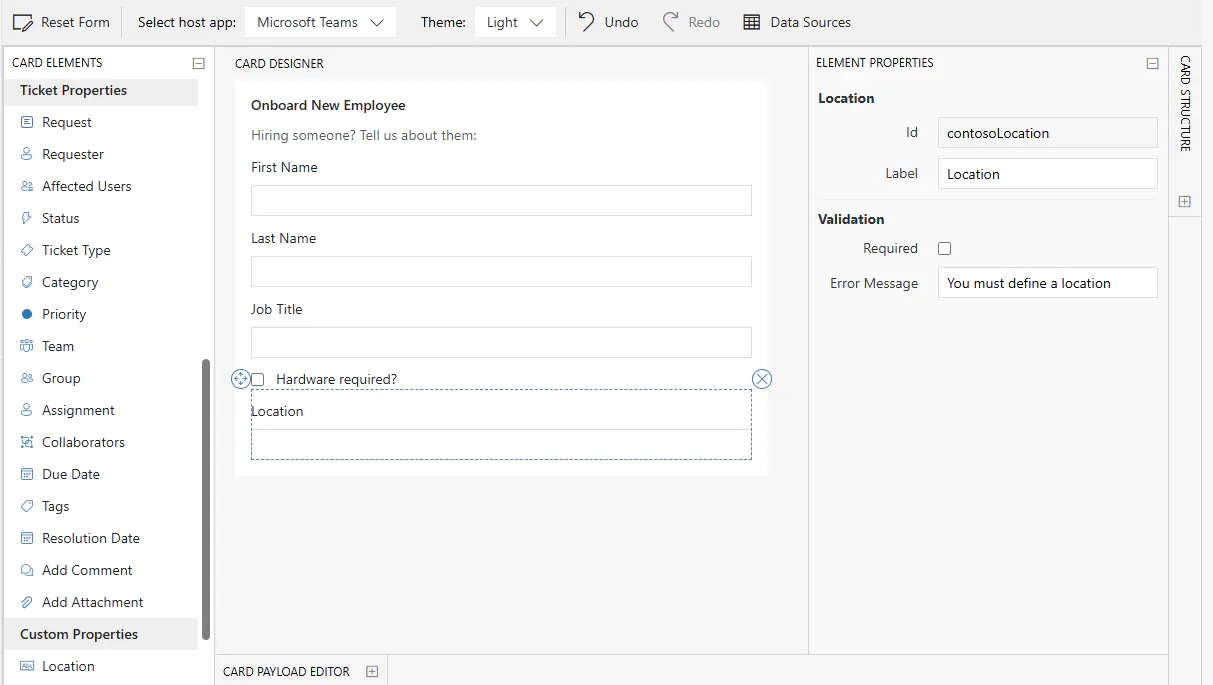
Custom Properties can also be leveraged with Form Designer and their settings overridden on a form by form basis. In this case, the ID, Label, Required, and Error Message come from how the property was originally defined.
In this example, the previously created Location property that has a definition of required, can be made optional on a Form.
You can read more about Forms here on the Knowledge Base.