Forms provide a way to get more information from your users whether they are asking for more permissions or agents submitting change requests. In combination with Templates, you can use one or many forms on a single Template
To create a Form to add to your Template, head into the Forms section.
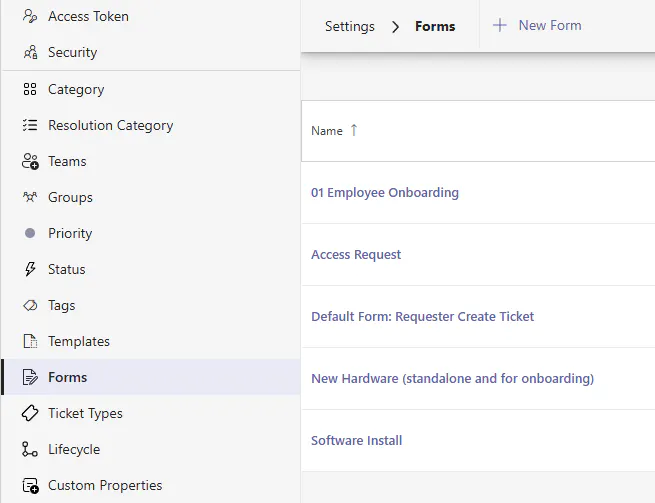
Then click on + New Form
Once on the Add a Form step, select to create a form from scratch or start with a predefined form. To use a predefined form, select Start with predefined form, then select an option from the Predefined Forms section.
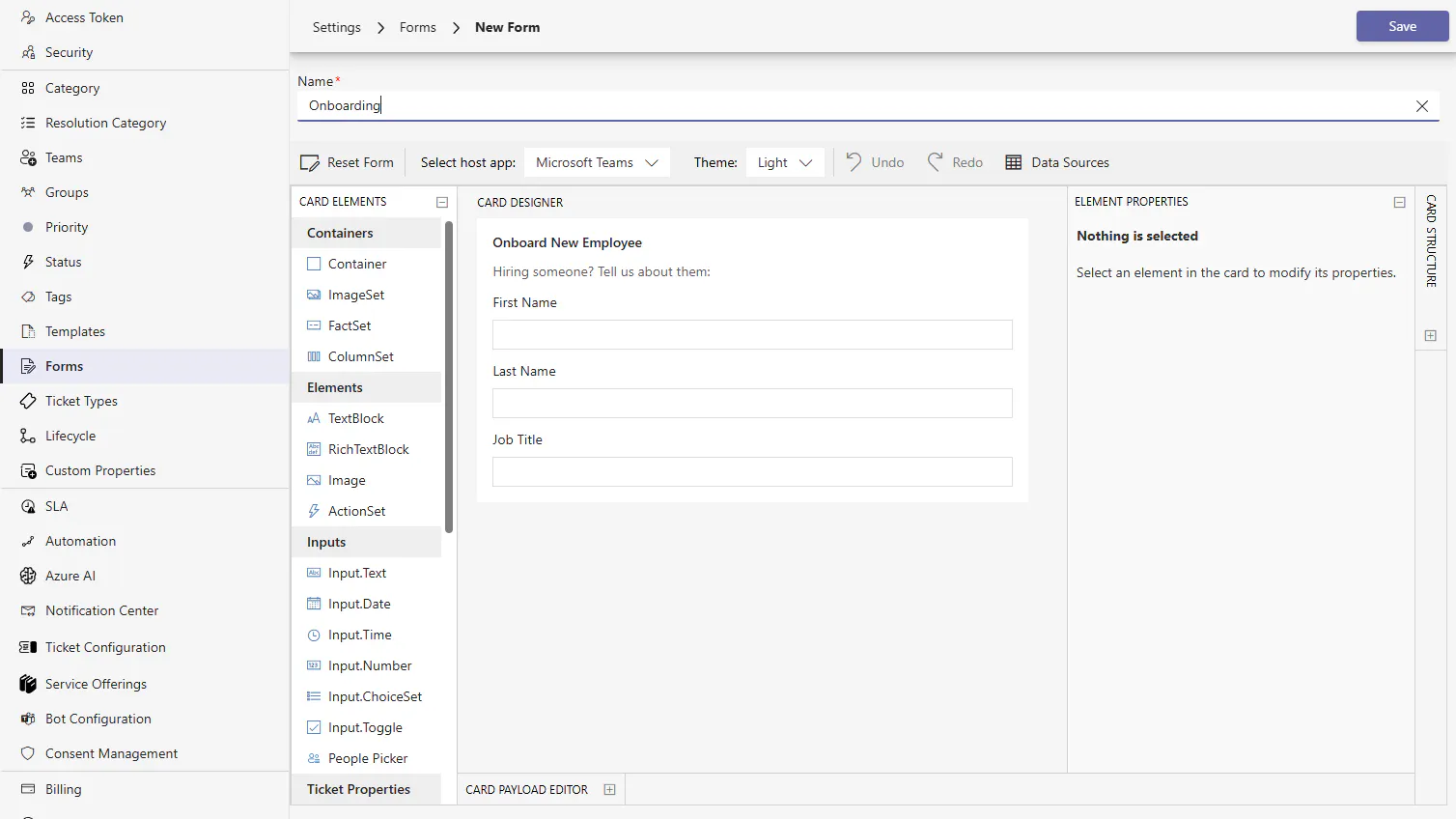
Select Create to continue to the form designer.

Once in the form designer, update the form to add/remove fields and optionally add validation, then select Save. To learn more about the designer, check out form designer below. Congrats on creating a new template! The template can now be used in the ticket deflection knowledge base as a response or directly applied to an existing ticket request additional information from a user.
Once in the form designer, update the form to add/remove fields and optionally add validation, then select Save. To learn more about the designer, check out form designer below.
Forms
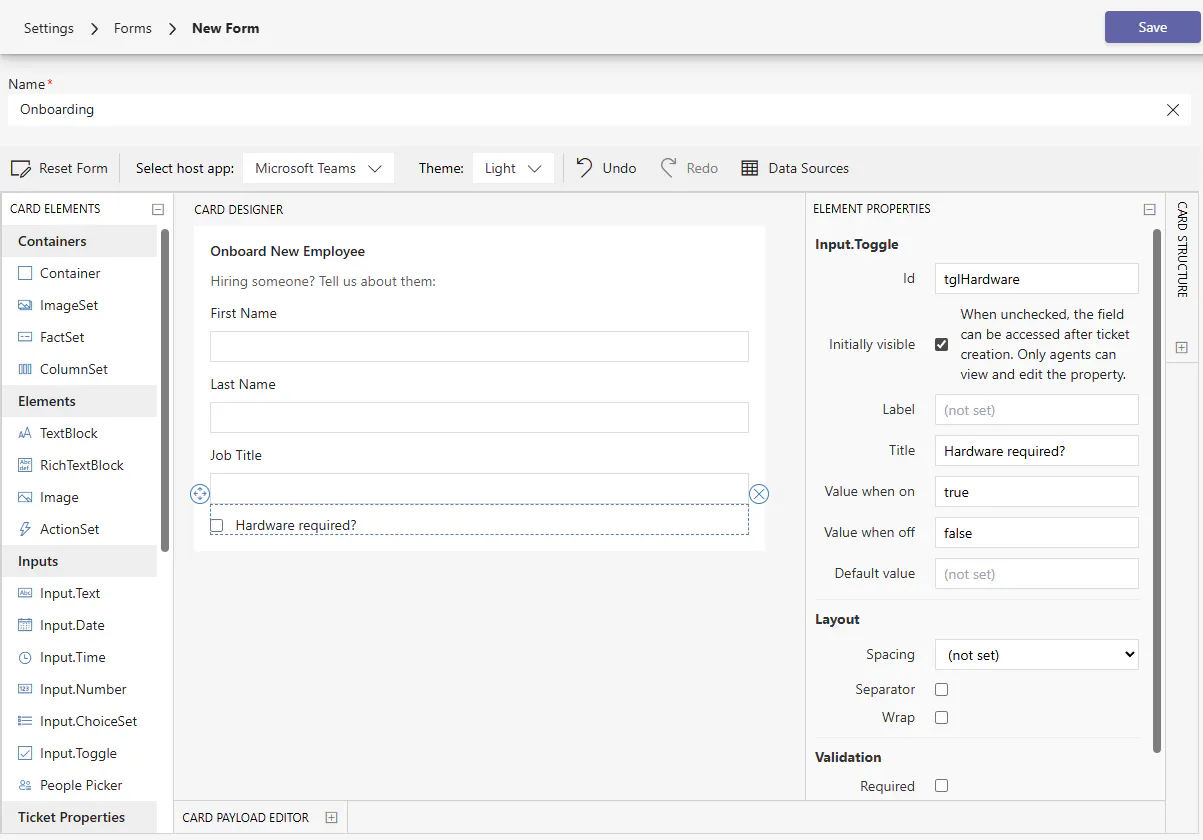
Display completely customizable forms in Teams using the form designer. The designer can be found when adding or updating a Form. Create new forms from scratch or select a predefined form for inspiration!
Hover over the labels or check out the following key section for more details.
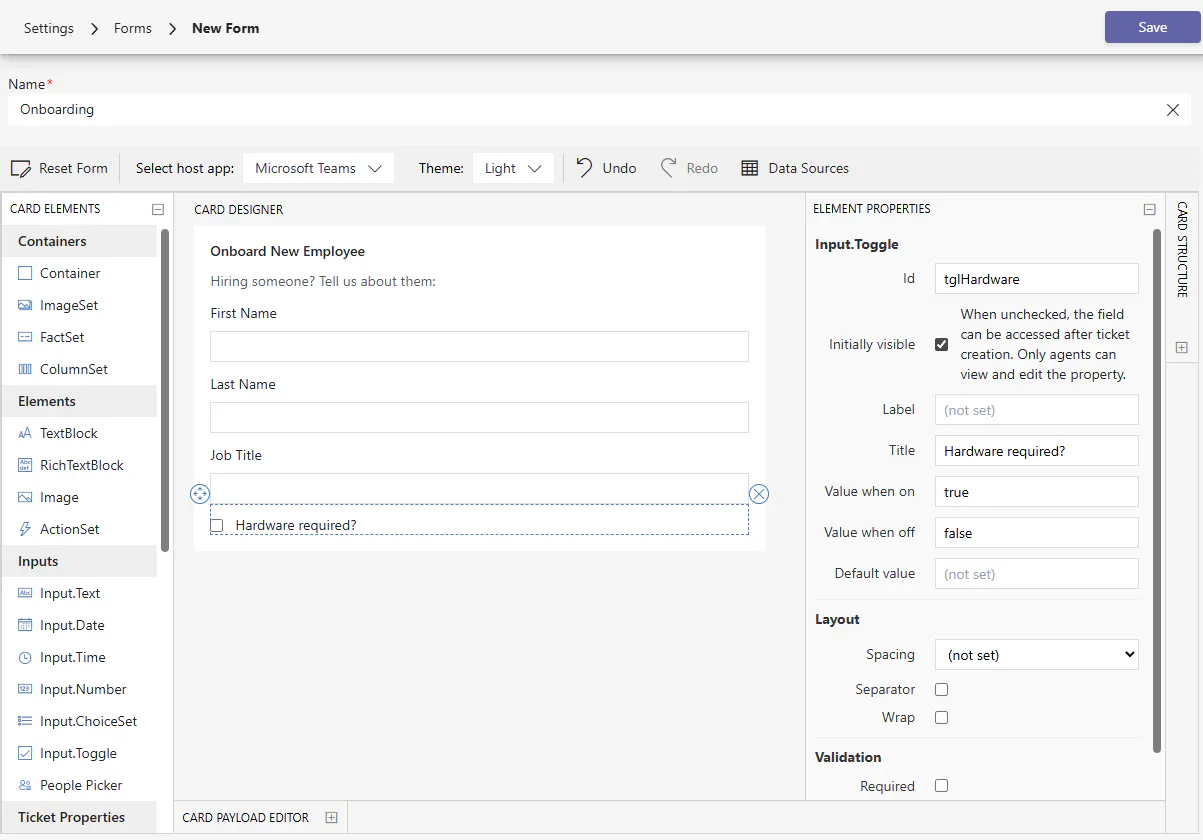
Name The name of the form. This will be seen when selecting a Form in Templates, and can optionally be displayed to the user filling it out as configured within Templates
Toolbar Reset the form, preview in Dark/Light Teams themes, and Undo/Redo changes.
Card Elements A tool palette of different elements to build the form.
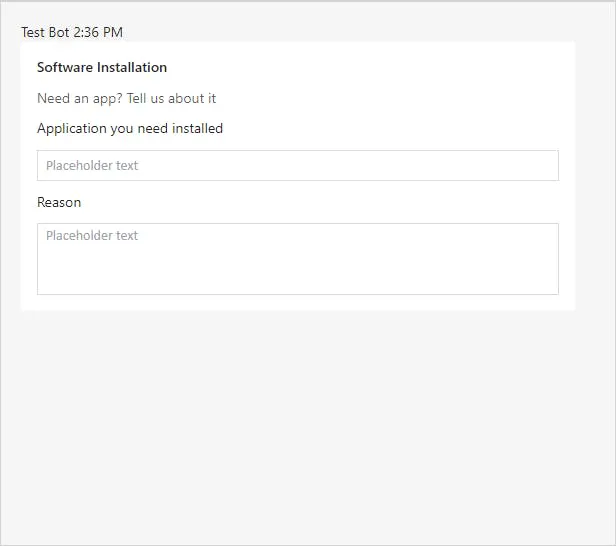
Card Area Preview and update the form with a WYSIWYG editor.
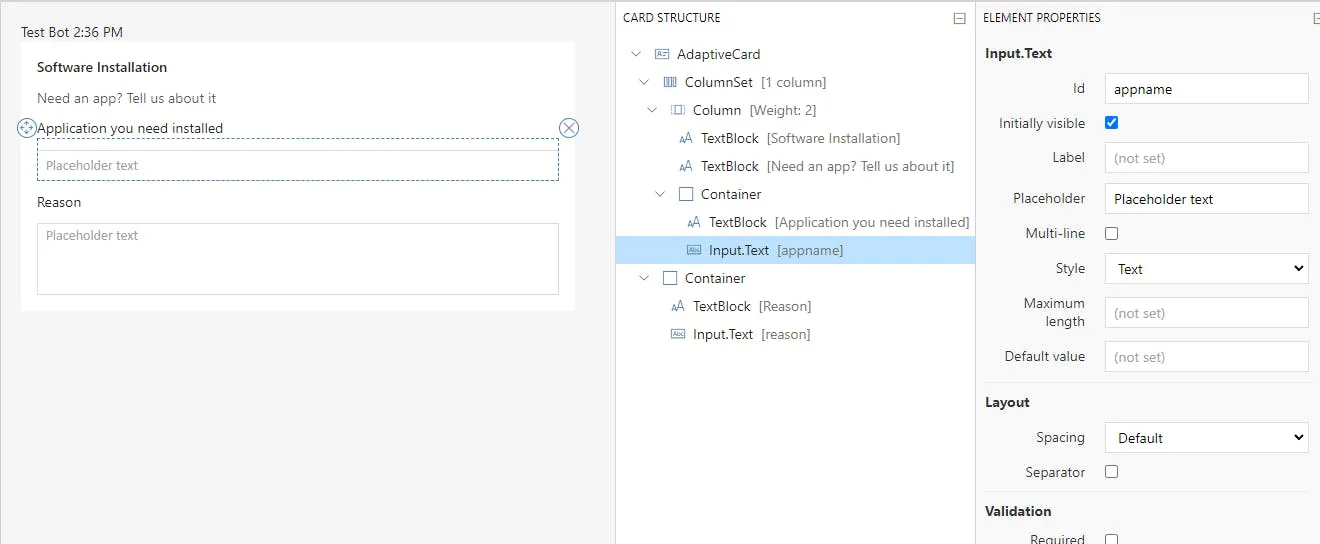
Card Structure View and select form elements to update specific properties.
Element Properties Element details and advanced features like validation and styling.
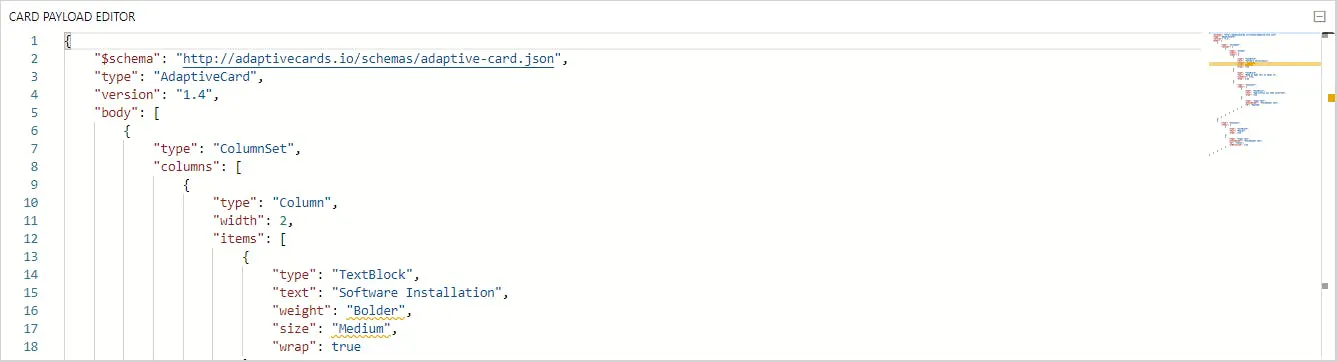
Card Payload Editor The card payload, or source code, that creates the form. Admins familiar with the Adaptive Card schema can update it directly here, but do so at your own risk!
Toolbar
Reset Form Redesign the form from scratch or a predefined template.
Select Host App Choose between Teams Light and Dark themes to preview the form in.
Under and Redo Undo/Redo changes to form.

Card Elements
The Card Elements tool palette provides a selection of elements to add to the form. Card elements come in three types:
Containers Arrange collections of child elements
Elements Display information like text or images.
Inputs Get input from the user.
To add an element, click and drag the element to the Card Area pane. To learn more about Adaptive Cards, see Authoring Cards
Containers
Container Defines a a collection of elements.
ImageSet Container of Images so that UI can show appropriate photo gallery experience for a collection of images.
ColumnSet/Column Defines a collection of columns, each column is a container.
FactSet Container of Facts.
Elements
TextBlock Adds a block of text with properties to control what the text looks like.
RichTextBlock Adds an array of inlines elements that support support different colors, font sizes, and styles.
Image Adds an image with properties to control what the image looks like.
Media Adds audio or video content content.
Inputs
Input.Text Get text content from the user.
Input.Date Get a Date from the user.
Input.Time Get a Time from the user.
Input.Number Get a Number from the user.
Input.ChoiceSet Give the user a set of choices and have them pick.
Input.Toggle Give the user a single choice between two items and have them pick
Ticket Properties
Request The body of the original request by the requester, see below for more details
Requester The user who requested the ticket
Affected Users Add Affected Users to the ticket
Status Set the Status of the ticket
Ticket Type Set the Ticket Type
Category Set the Category of the ticket
Priority Set the priority
Team Set the Team
Group Set the Group
Assignment Set an Assignee on the ticket using a pre-configured Team and Group, see below for more details
Collaborators Add Collaborators to the ticket
Due Date Set the Due Date property
Tags Add Tags
Resolution Date Set the Resolution Date. Valuable for tickets that are auto-resolved on submission.
Add Comment Add a comment to the ticket
Add Attachment Attach files to the ticket
Of these properties, the Request field is especially unique. Text can be added to the request field to ensure that every request submitted includes the added text. Additionally, the {{message}} tag contains the original request by the user who is creating the ticket. You can chose to include the original request text, or remove it from the field if the original request data is not important. Additionally, you can use variables in the request field to include other data fields included on the form. To learn more about request variables, see HERE. Finally, you can chose whether or not to show or hide the Request field to prevent it from being modified during the form submission process using the Initially Visible checkbox.
Assignment is also a unique property. It allows for an Assignee to be set on a ticket using a pre-defined Team and Group. After adding Assignment to a form, a Team and Group must be selected. The Assignee dropdown will then filter possible assignees for the ticket based on Team and Group membership. This property cannot be used in conjunction with the Team or Group properties on the same form.
Custom Properties
Depending on the number of Custom Properties you have created, they will appear after Ticket properties in the left hand selection menu of inputs.
Data Sources
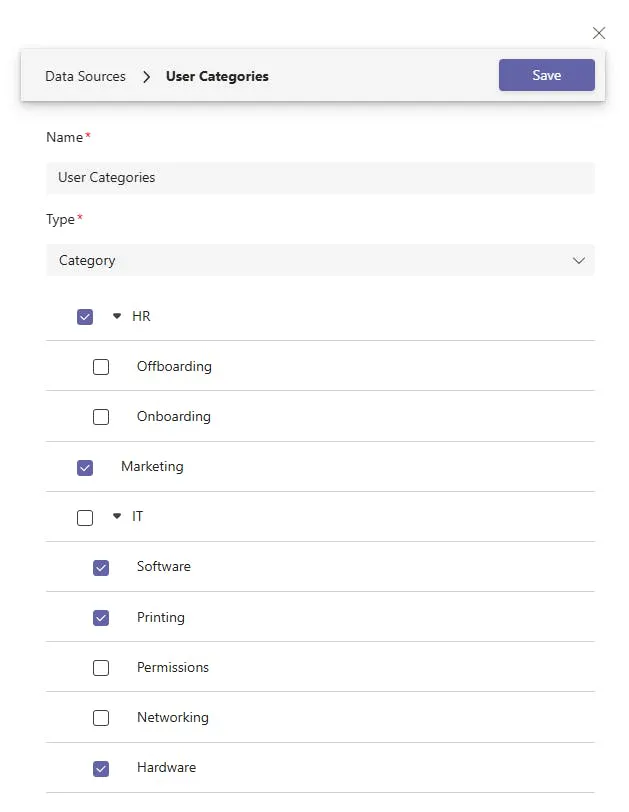
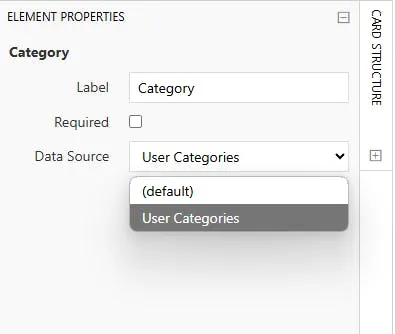
Data sources allow you to configure curated sets of data for various ticket properties. Think of data sources as a way to filter property options to only the ones you want your users to see when filling out a form. To configure a Data Source, click Data Sources at the top of the form designer, then select New Data Source. Give your new Data Source a name, then use the dropdown to select which data type you want to create. After selecting your data type, you will see a list of all of the data points for that property. Check the checkboxes next to the items you wish to be displayed to the user when choosing that data type. When the user is presented with the form, the dropdown for that data type will only display the items you checked. After creating the Data Source, click on the form element matching that data type and select the newly created Data Source in the dropdown.
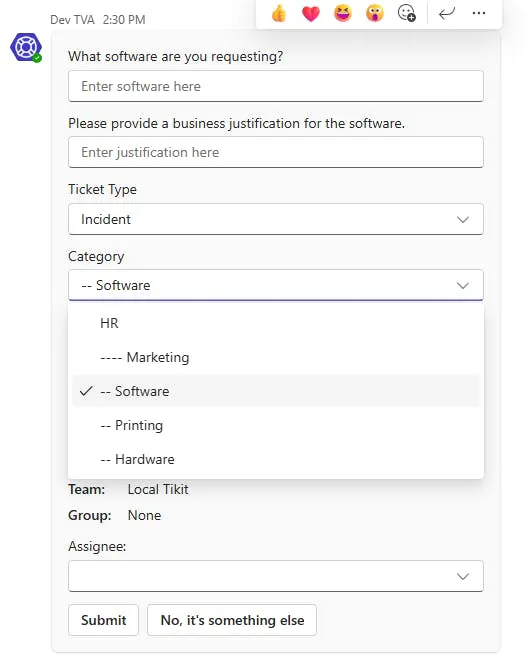
Once selected, you can save your template and test the new form. You will note when clicking the dropdown for the element on the form, that only the data points you checked are visible in the list.
Card Area
The Card Area provides a WYSIWYG preview and editor for the form that users will see. The editor has several features to quickly update form:
View Select an element to view details in the Card Structure and Element Properties panes.
Update Double click an element to update it directly from the preview.
Reorder Drag and drop to reorder elements in the form.
Card Structure and Element Properties
The Card Structure pane provides a detailed view of the form’s elements. An element can be selected from both the Card Area and in the Card Structure pane. Select an element to view and update its properties.
Card Payload Editor
Warning! Updating the card payload directly should only be done by admins familiar with the Adaptive Card schema to avoid breaking a form.×
The Card Payload Editor lets admins familiar with the Adaptive Card schema directly view and edit the source payload for a card. For more information on the Adaptive Card schema, see Schema Explorer.