


Asset Management for Tikit brings the ability to manage devices, their finances, and relationships to tickets into your environment on the ITSM Plan.
Installation is comprised of a few steps:
Obtaining Asset Management
To download the required solutions below, fill out this form. You will get an email with two download links, download both zip files and leave them zipped.
Enabling Custom Code in your Environment
The environment you deploy Asset Management to must have Power Apps Code Apps enabled in order to run Asset Management. To enable this:
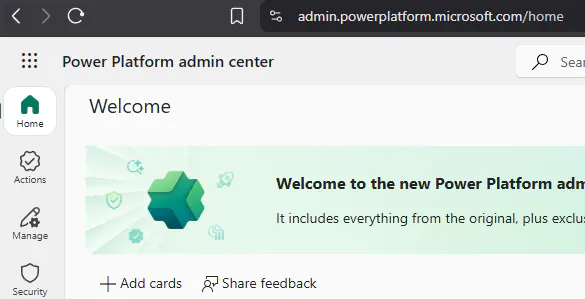
Navigate to https://admin.powerplatform.microsoft.com/home
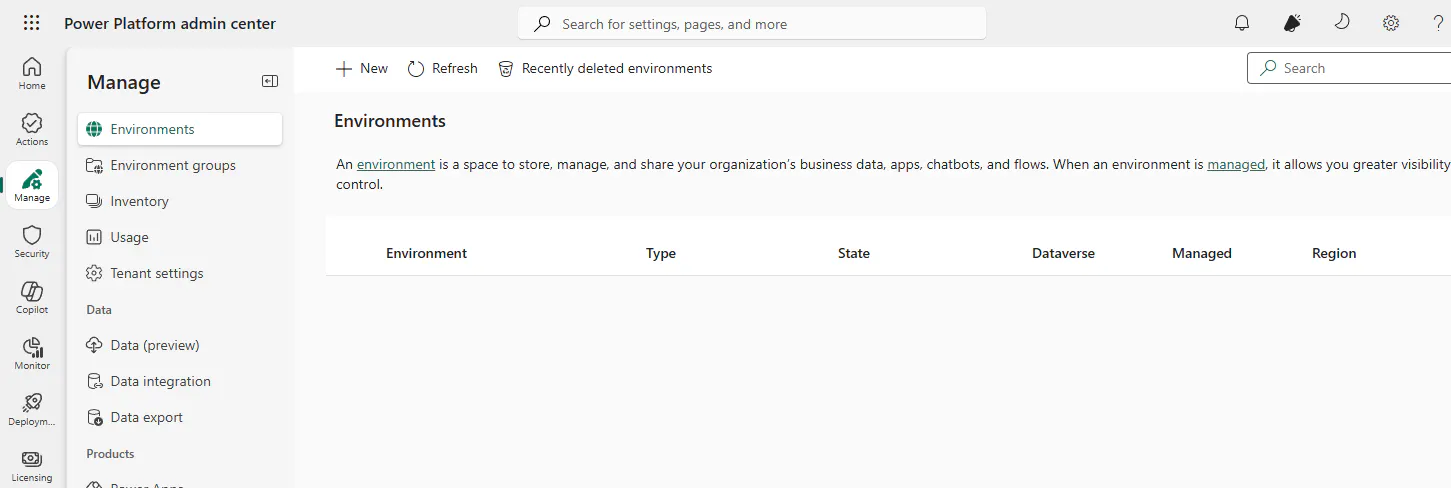
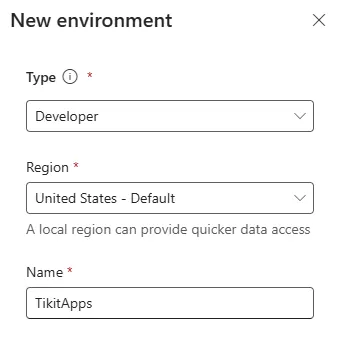
Click on Manage in the left hand navigation and click the name of the Environment you will deploy Asset Management to. We suggest you create a new Environment called TikitApps for all Tikit related Apps, and with Type as Production or Sandbox (for testing) and with Datavserse toggled on.
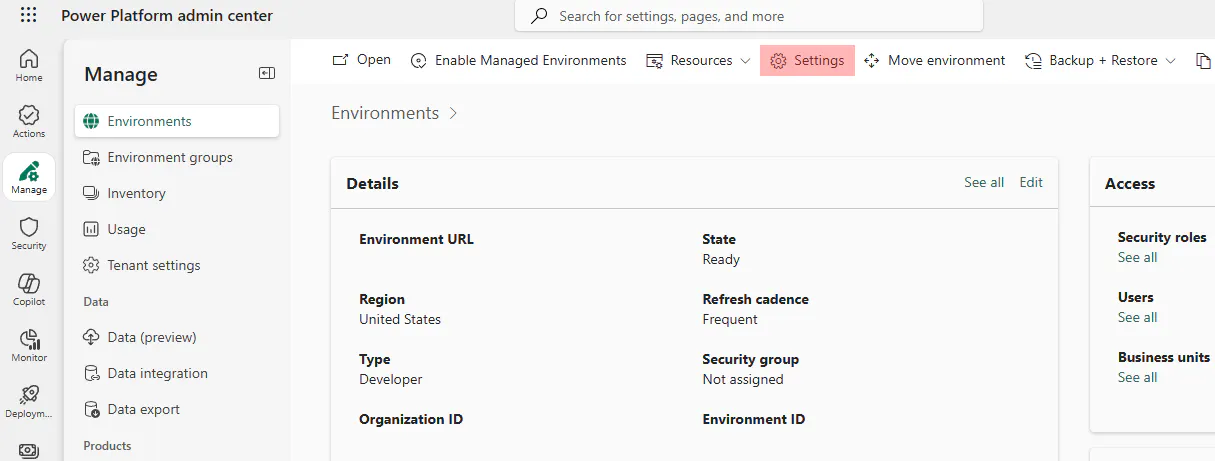
Once inside the Environment, click on Settings in the top menu
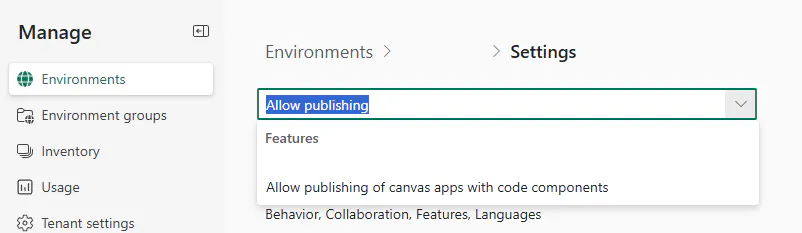
In the search, search for "Allow publishing" and click Allow publishing of canvas apps with code components
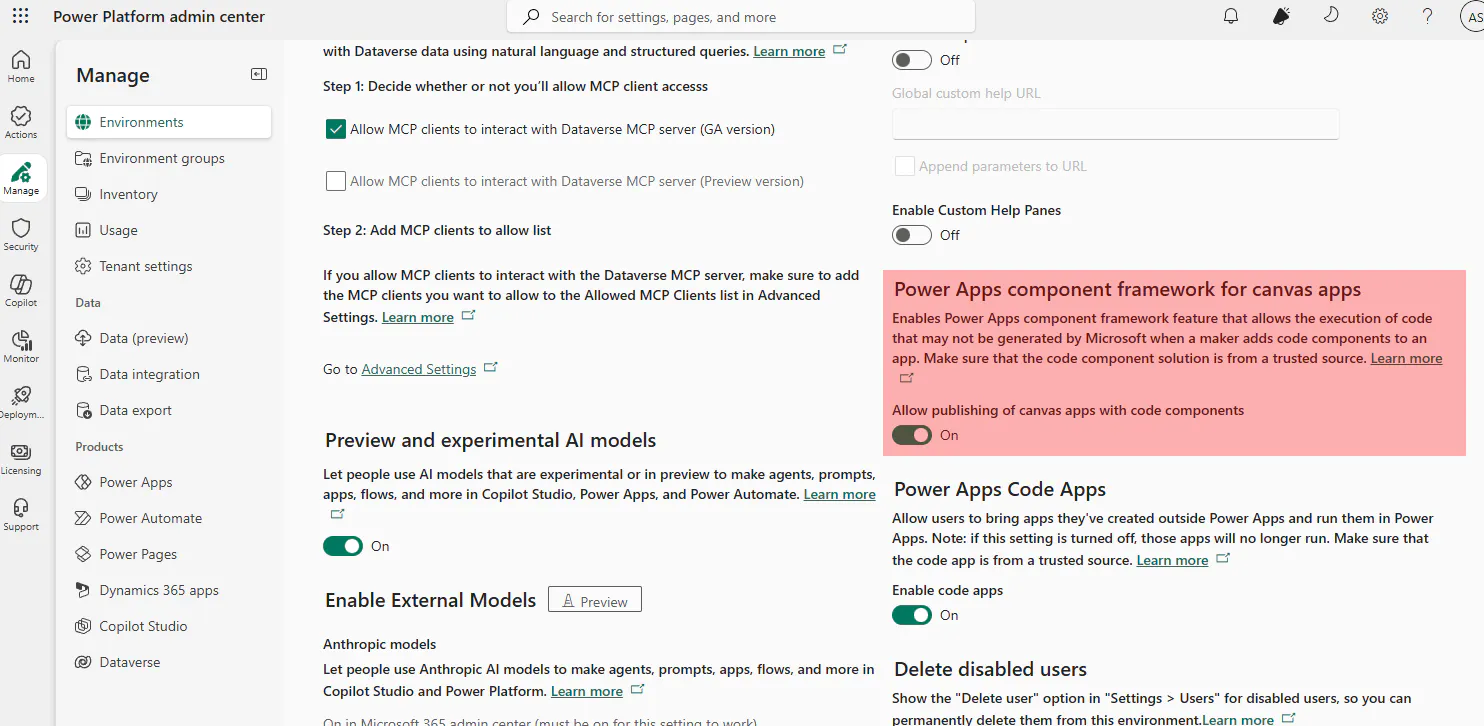
On the page that is returned, enable the feature Power Apps component framework for canvas apps
Installing Asset Management to your Environment
This section will walk you through the installation process for Asset Management.
Log into https://make.powerapps.com/
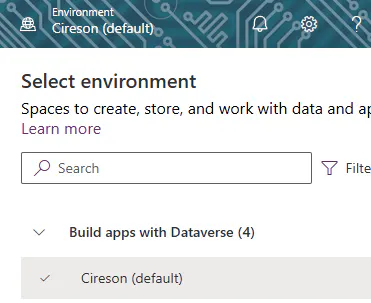
Choose the Environment you'll be installing to by clicking on "Environment" in the top right of the page.
Power App Environments allow you to manage production, development, staging, or other environments as you see fit. By default, your production environment will have (default) next to its name.
Installing Asset Management to a non-production environment is supported and encouraged if you want to a have a "dev environment" for Asset Management
b. (optional) To manage environments, log into https://admin.powerplatform.microsoft.com/
Next, head to Solutions
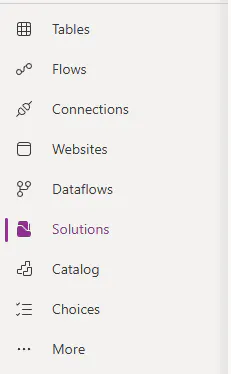
Don't see it? Click on "... More" and click the pin for "Solutions"
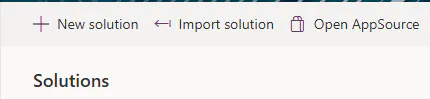
Then choose Import Solution on the top ribbon
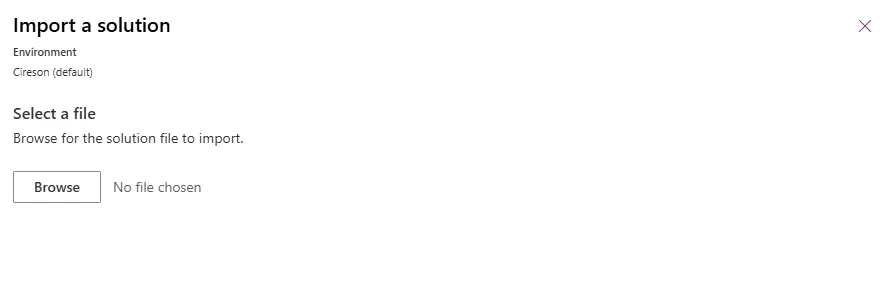
Choose "Browse"
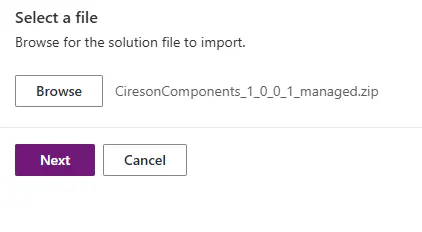
First, we'll import CiresonComponents_x_x_x_x_managed.zip where x_x_x_x represents the version number
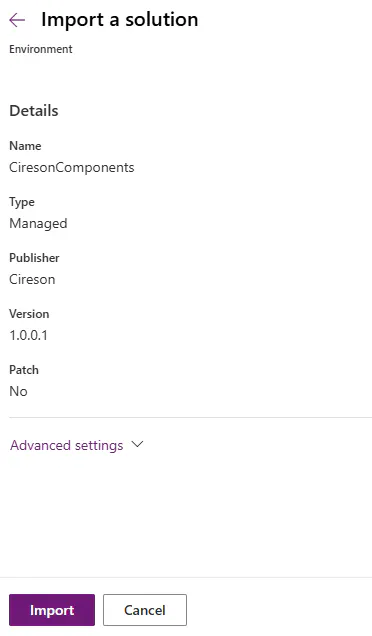
Click Next and the finally Import
Wait for CiresonComponents to import. Power Apps will display a banner along the top of the screen letting you know importing has begun and when it has completed. You may navigate away from the page once you have begun the import.
Next, choose Import Solution again only this time browse and import AssetManagement_x_x_x_x_managed.zip where x_x_x_x represents the version you are importing.
Again, click Next, and then Import
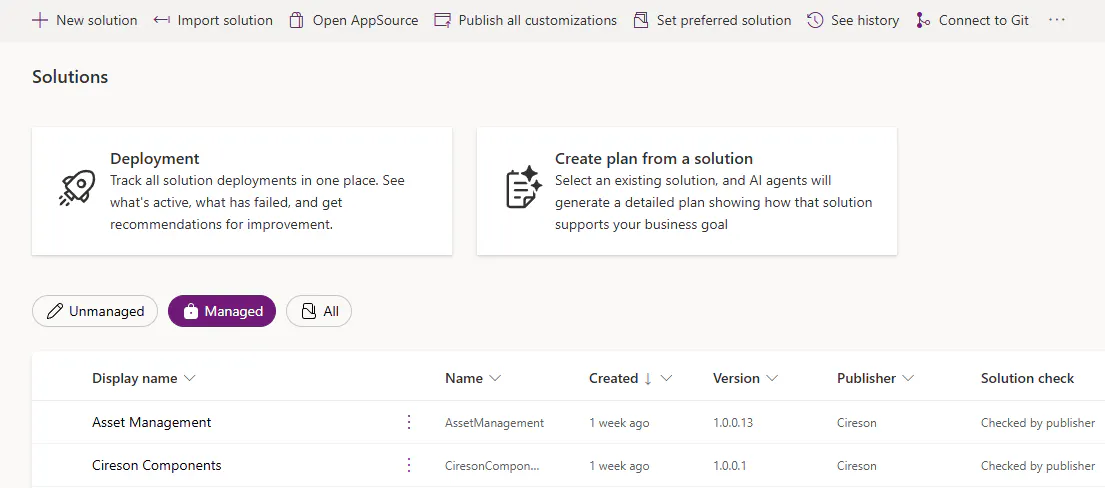
Once imported, navigate to the Managed tab where you will see both solutions you have imported.
Retrieve the Asset Management App ID
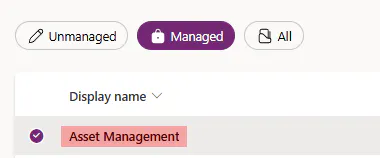
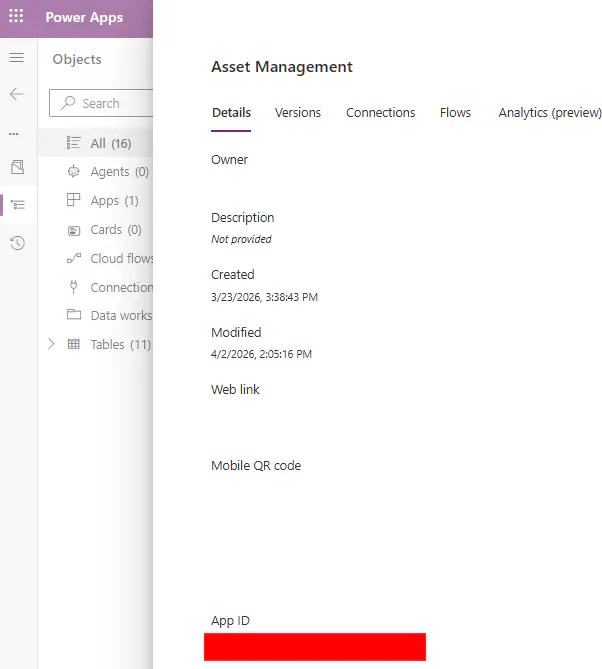
Next you'll need to retrieve the App ID in order to configure custom navigation within the Tikit Agent portal. Click Asset Management
Then click the stacked "..." menu item to the right of Asset Management, then Details
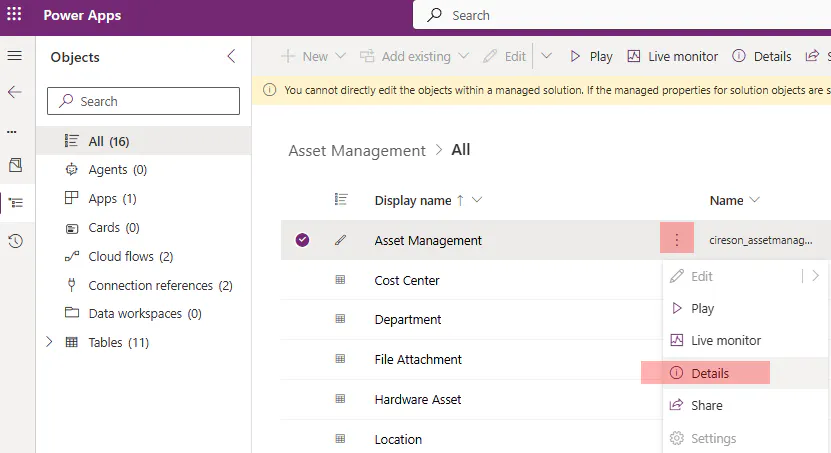
Copy the value from App Id and take note of it for later in this article in the Adding Navigation into Tikit Agent Portal section
Upgrading Asset Management
To upgrade Asset Management or its components:
Navigate to https://make.powerapps.com/
Choose the Environment you'll be upgrading to by clicking on "Environment" in the top right of the page.
Power App Environments allow you to manage production, development, staging, or other environments as you see fit. By default, your production environment will have (default) next to its name.
b. (optional) To manage environments, log into https://admin.powerplatform.microsoft.com/
Next, head to Solutions
Then choose Import Solution on the top ribbon
Choose "Browse"
Import the app you wish to begin the upgrade for
The version you are upgrading to must be higher than the version that exists in your environment otherwise no upgrade will take place.
Click Next
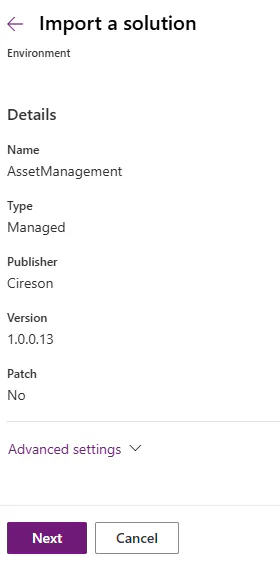
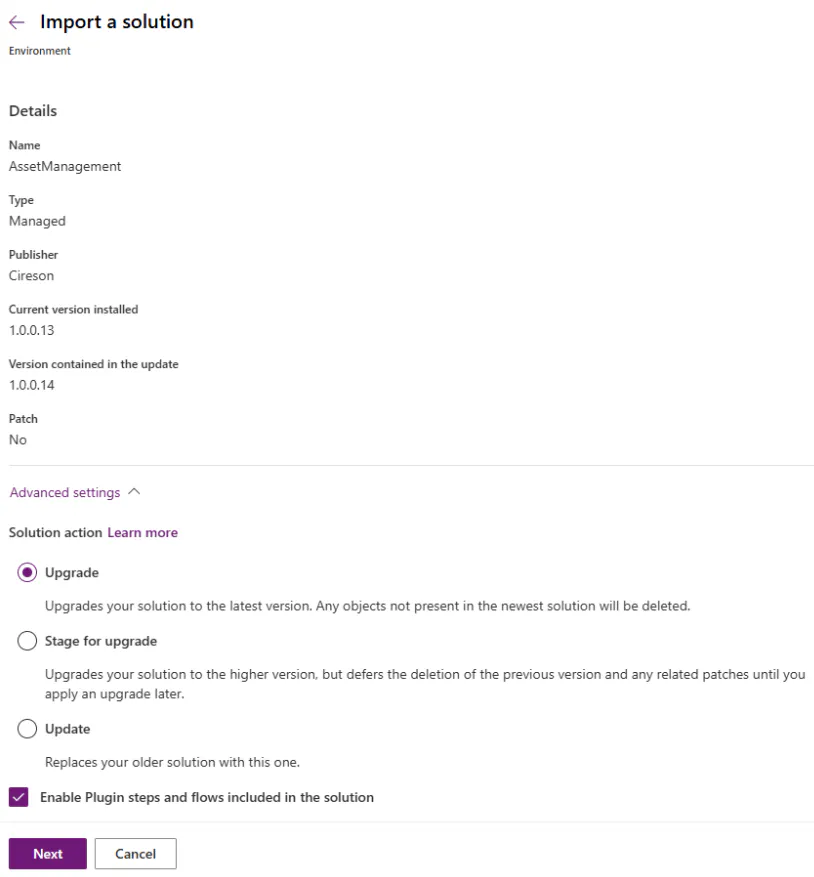
On the Import a Solution screen, if you expand Advanced Settings you'll see three choices.
Unless told otherwise, leave the default choice of Upgrade selected
Leave Enable Plugin steps and flows included in the solution checked
Click Next
Depending on the nature of the upgrade and your version, your choices below will vary. But it should be noted, you have an opportunity to adjust these connections before import. If you change your mind later, they can adjusted later.
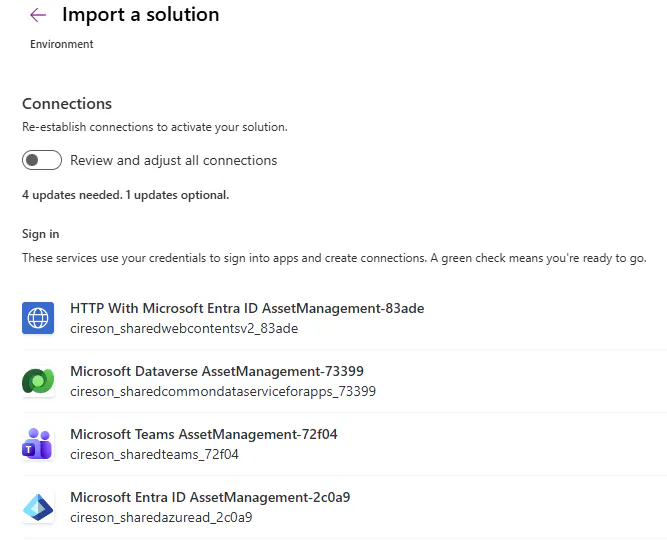
If you receive an errors/are unable to move forward to import. Adjust the connections in question with valid credentials.
Finally, import the solution to complete the upgrade
Adding Navigation into Tikit Agent Portal
Once installed, download the associated PowerShell or Postman collection to add Asset Management navigation nodes.
PowerShell
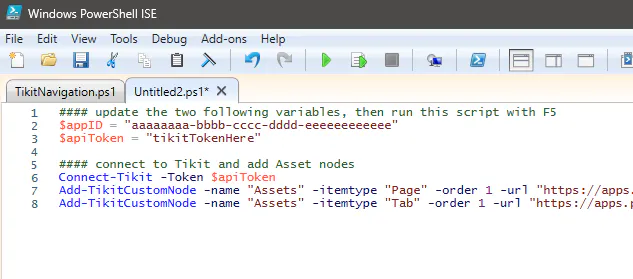
The associated PowerShell is a series of functions that support the ability to connect to your Tikit instance, Add, Get, Update, and Remove custom navigation. Once downloaded, unzip the file and open TikitNavigation.ps1 in either PowerShell ISE or VSCode and run it by pushing the F5 key.
Now, create a new file in either PowerShell ISE or VSCode and paste the following script into your new file.
Then copy and paste the following PowerShell below into that screen.
#### update the two following variables, then run this script with F5
$appID = "aaaaaaaa-bbbb-cccc-dddd-eeeeeeeeeeee"
$apiToken = "tikitTokenHere"

#### connect to Tikit and add Asset nodes
Connect-Tikit -Token $apiToken
Add-TikitCustomNode -name "Assets" -itemtype "Page" -order 1 -url "https://apps.powerapps.com/play/$($appID)?source=website&screenColor=rgba(165,34,55,1)" -iconURL "https://tikitapi.cireson.com/tikitassets/assetmanagement/phonelaptop_regular.svg"
Add-TikitCustomNode -name "Assets" -itemtype "Tab" -order 1 -url "https://apps.powerapps.com/play/$($appID)?&ticketid={ticketId}&requesterid={requesterEntra}&source=website&screenColor=rgba(165,34,55,1)"
PowerShell ISE
VS Code
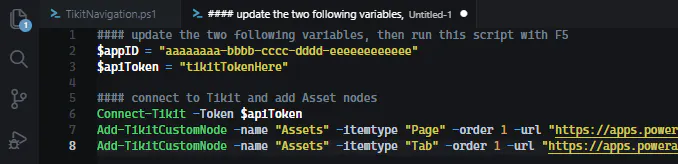
Before you run this, you will need to paste in your Power Apps App ID (above in this article) and a Tikit Access Token with administrator privileges.
With your App ID and Token pasted into the above, push F5 to run the script. This will create two new pieces of navigation instantly within your Tikit Agent portal.
Assets will be available on the left, and Assets will also be available as a tab within tickets when editing them.
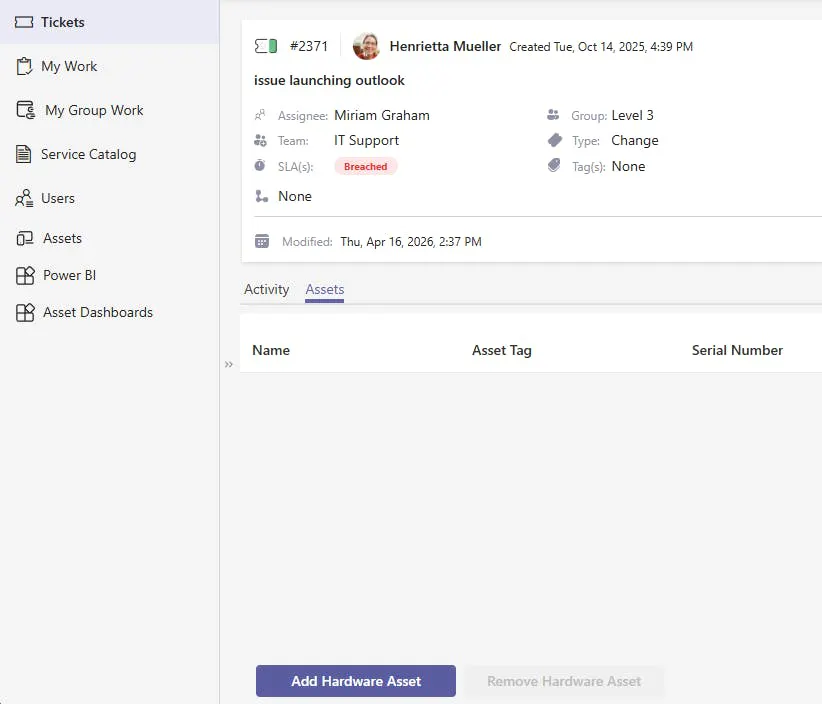
To customize further, check out our article on Custom Navigation in the Agent Portal
Configuring InTune Sync
To setup the InTune connector, you can use Configuring InTune App Registration